Organise a team
- Sign in and create a team, or accept an invitation.
- Invite your drivers. Link a Discord server if you want race cards and reminders.
- Choose a start, collect replies and assign stints.
 GRIDUNION
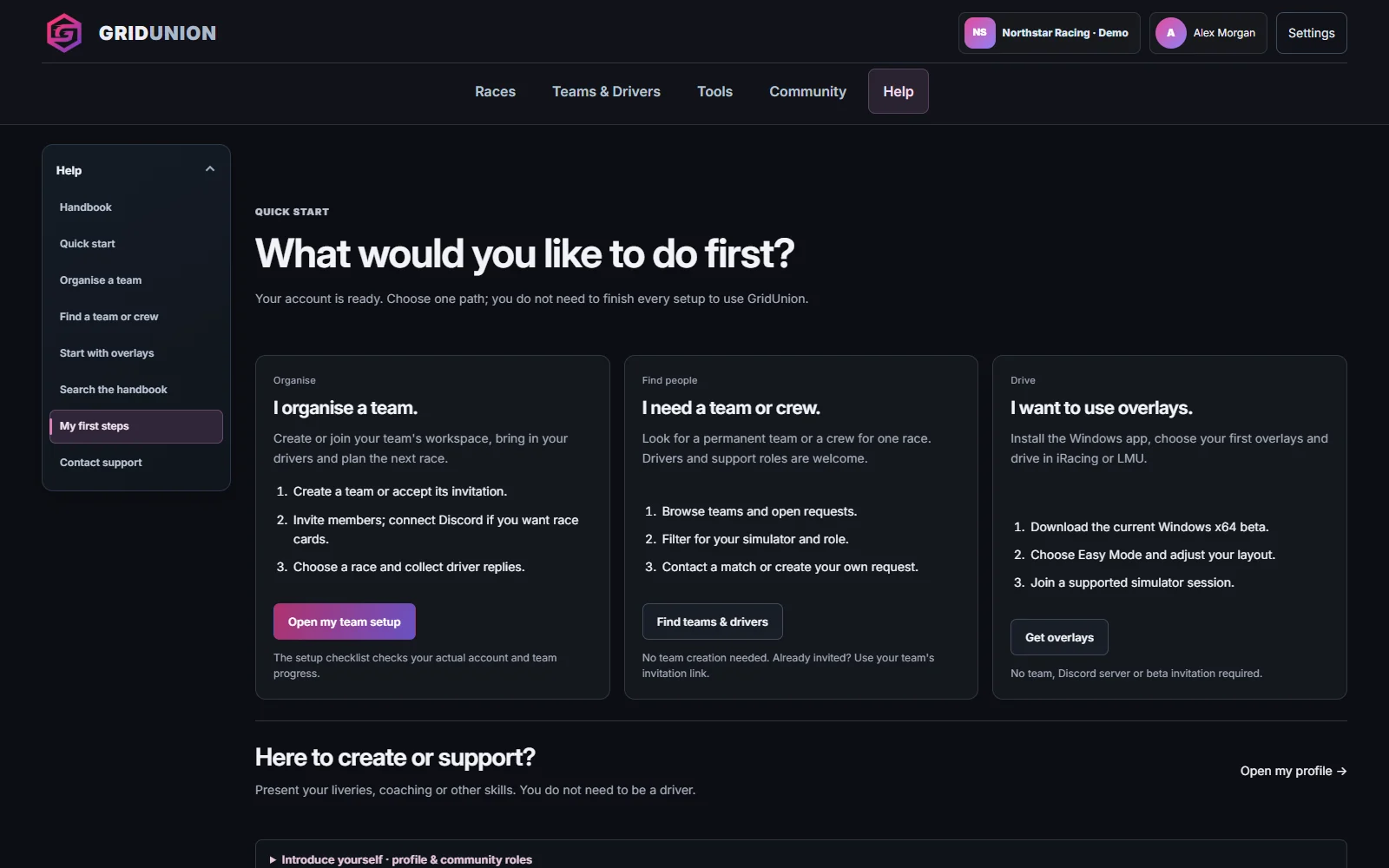
Start with one task or search the handbook. You do not need to read every chapter to use GridUnion.
Only follow the path you need. A team setup is not a requirement for the overlays app.
Real captures · November 2026 · click to enlarge. Values in the images are examples, not live data.
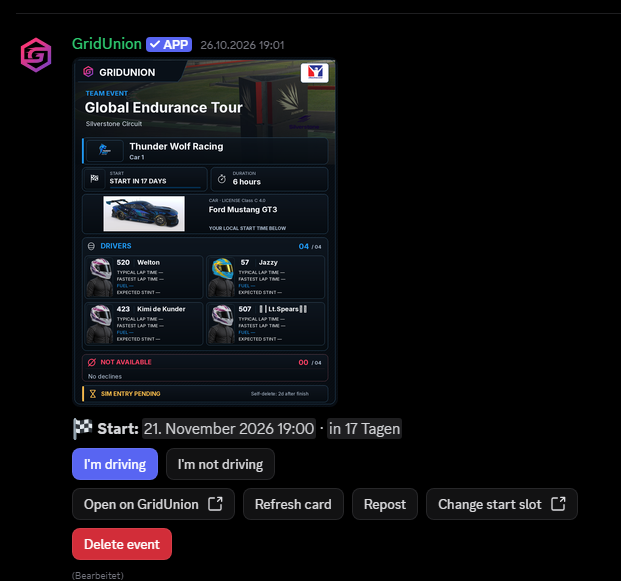
Respond directly beneath your team’s race card.
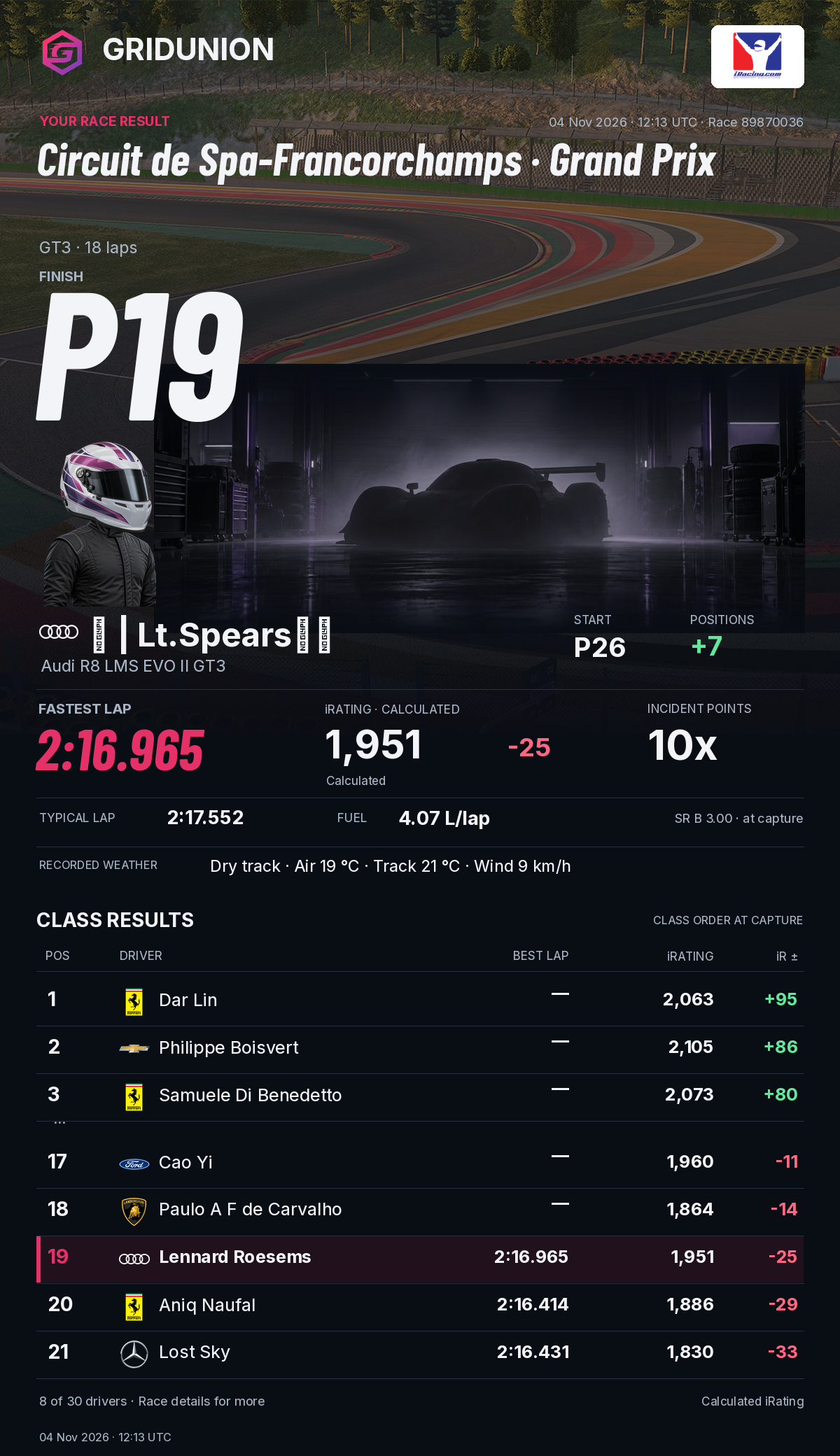
Your finish, fastest lap and a short class result.
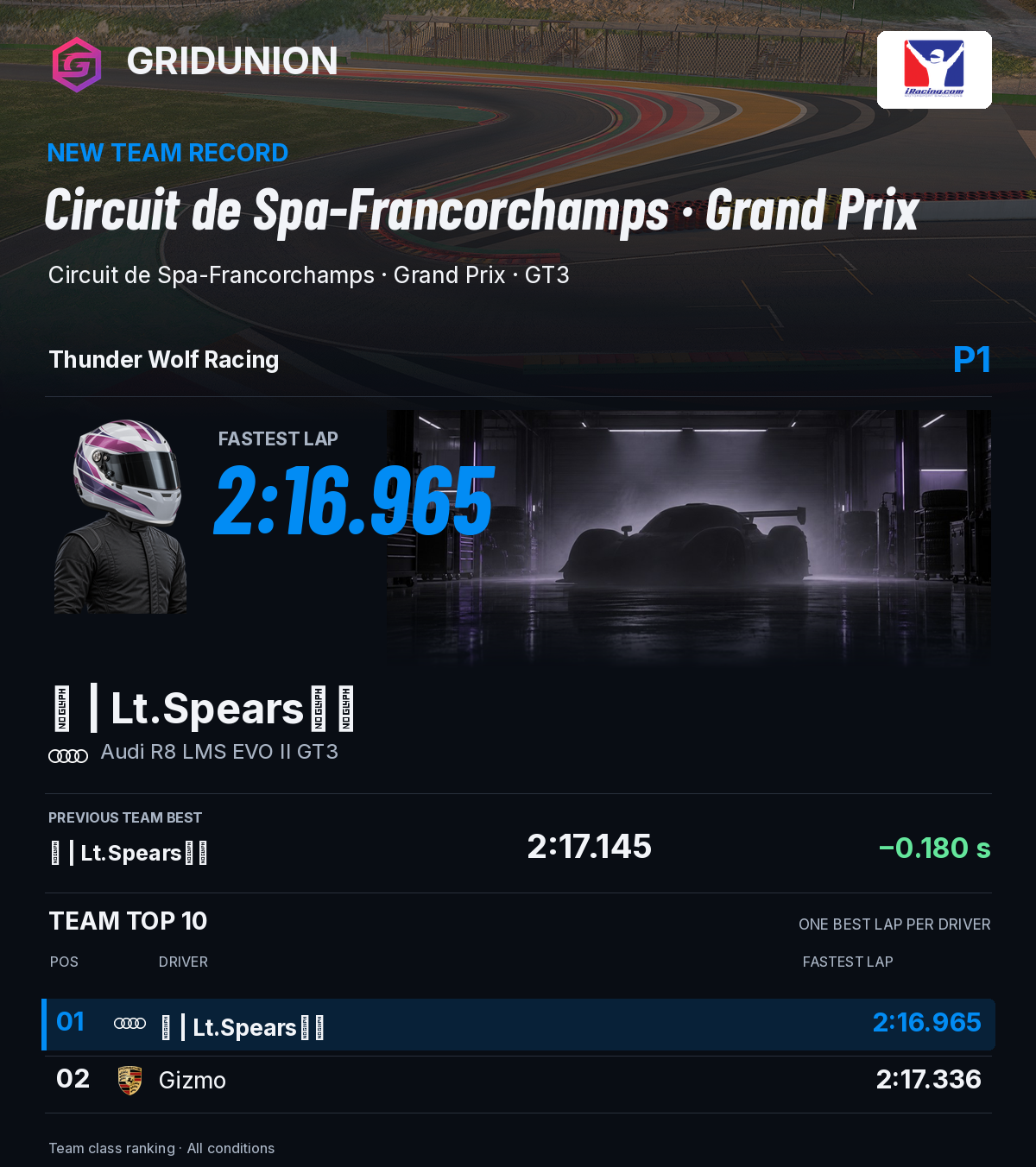
The new best, previous time and one fastest lap per driver.
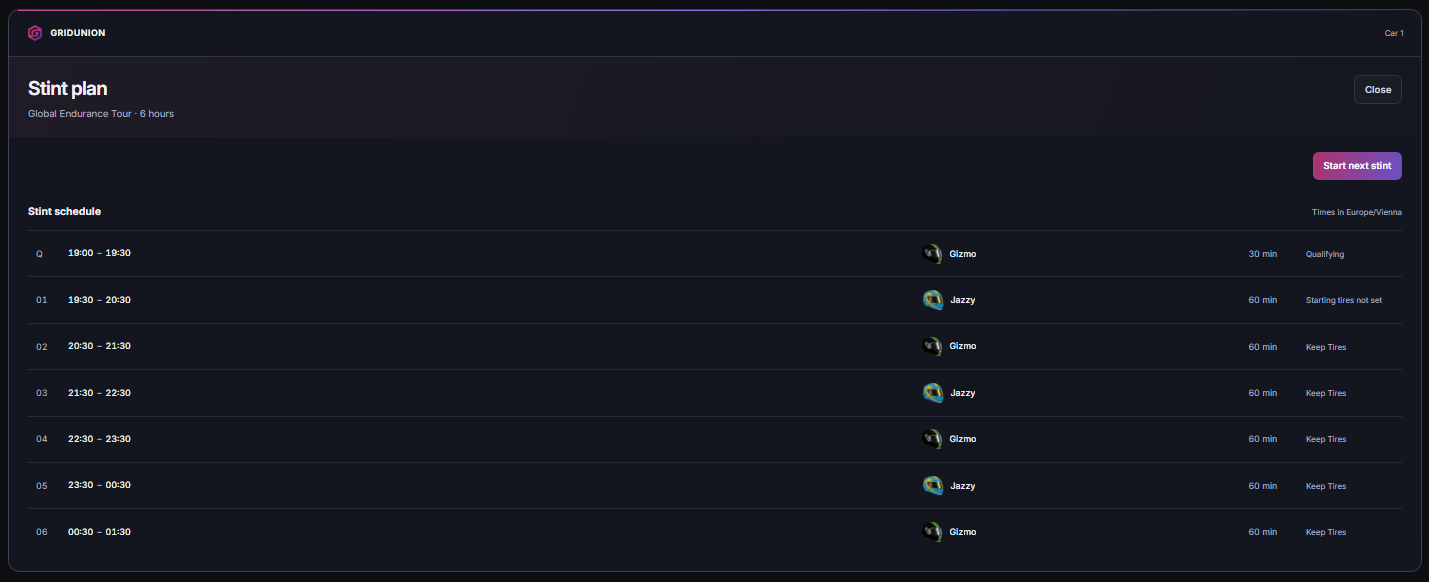
Drivers, times and tyre choices in one shared plan.
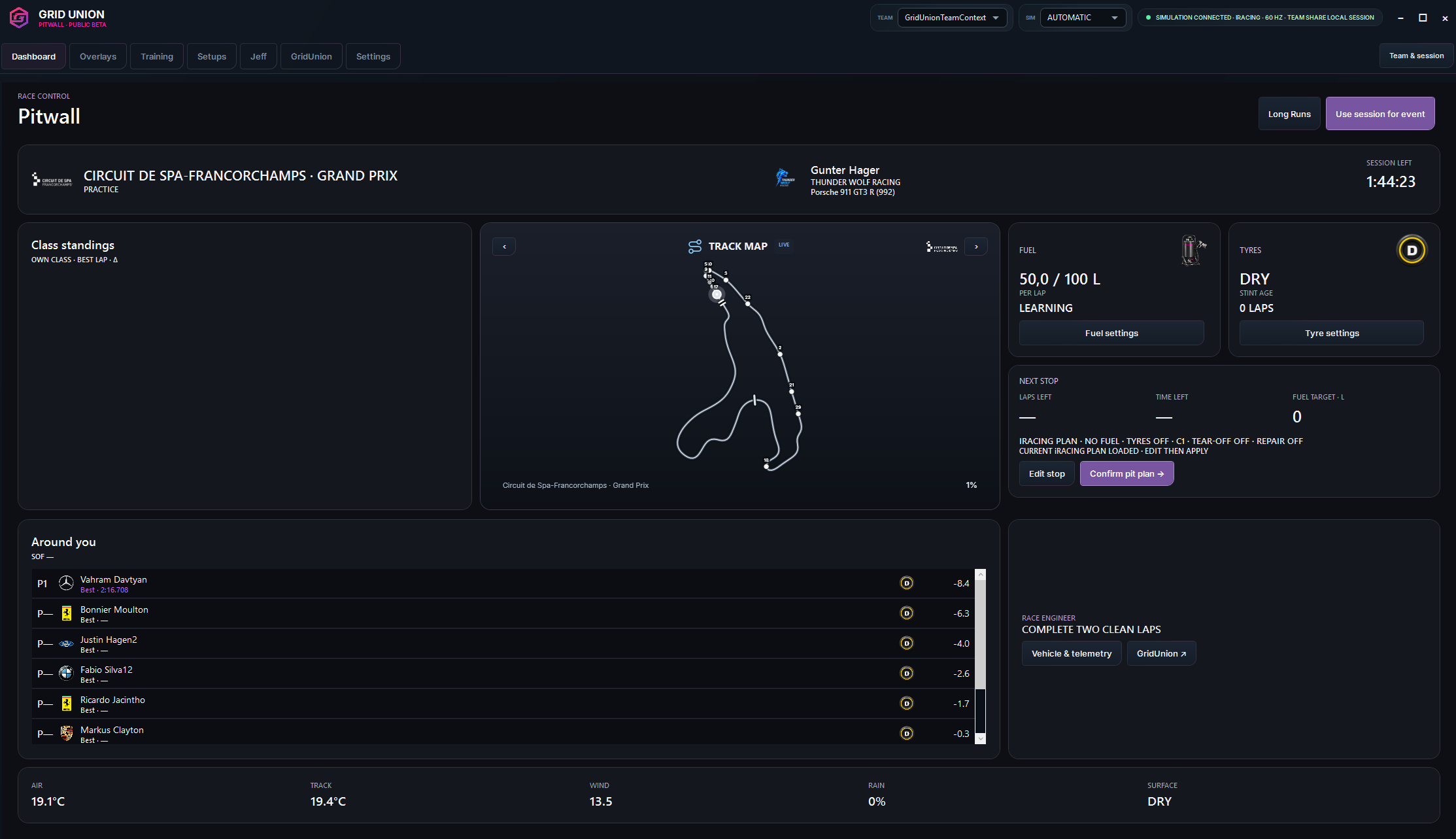
Timing, track position, fuel and the next stop.
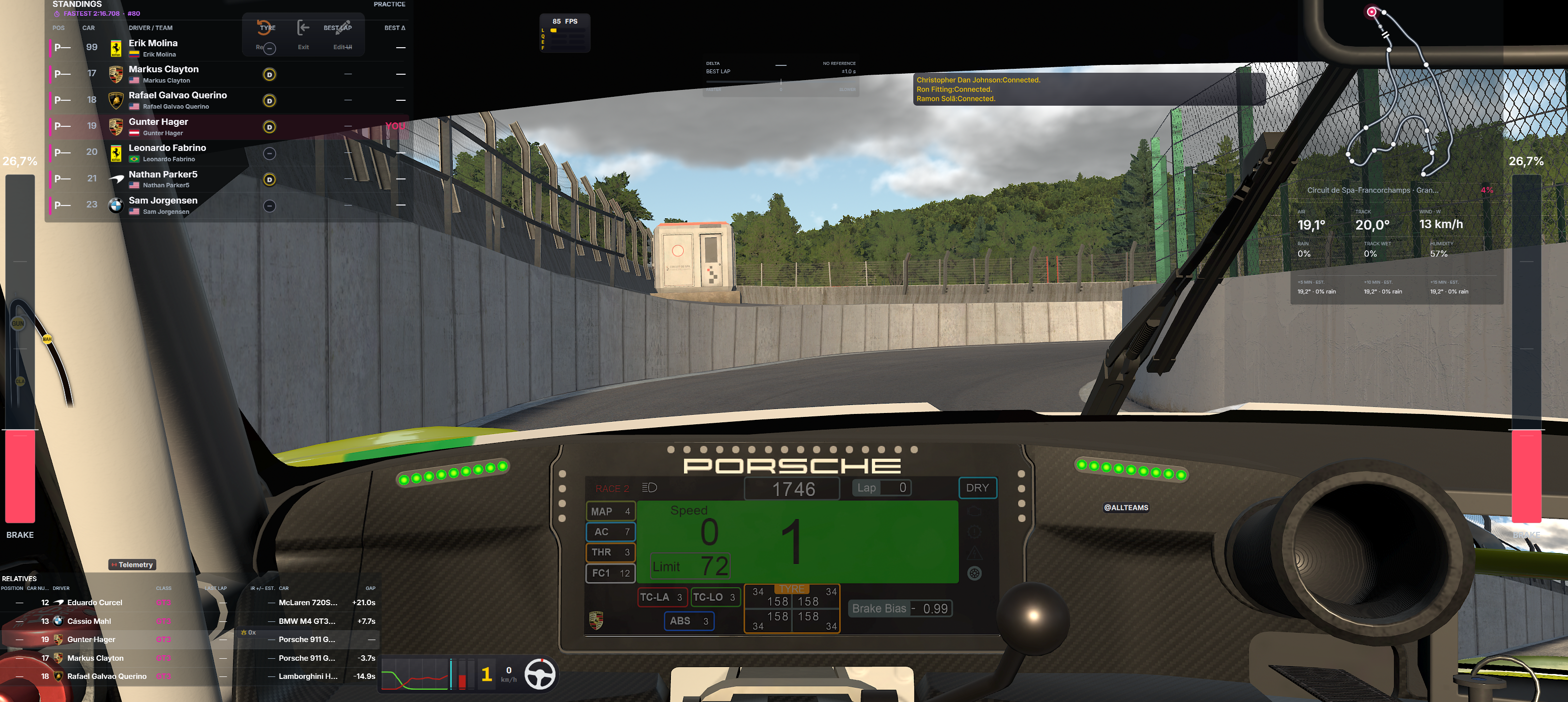
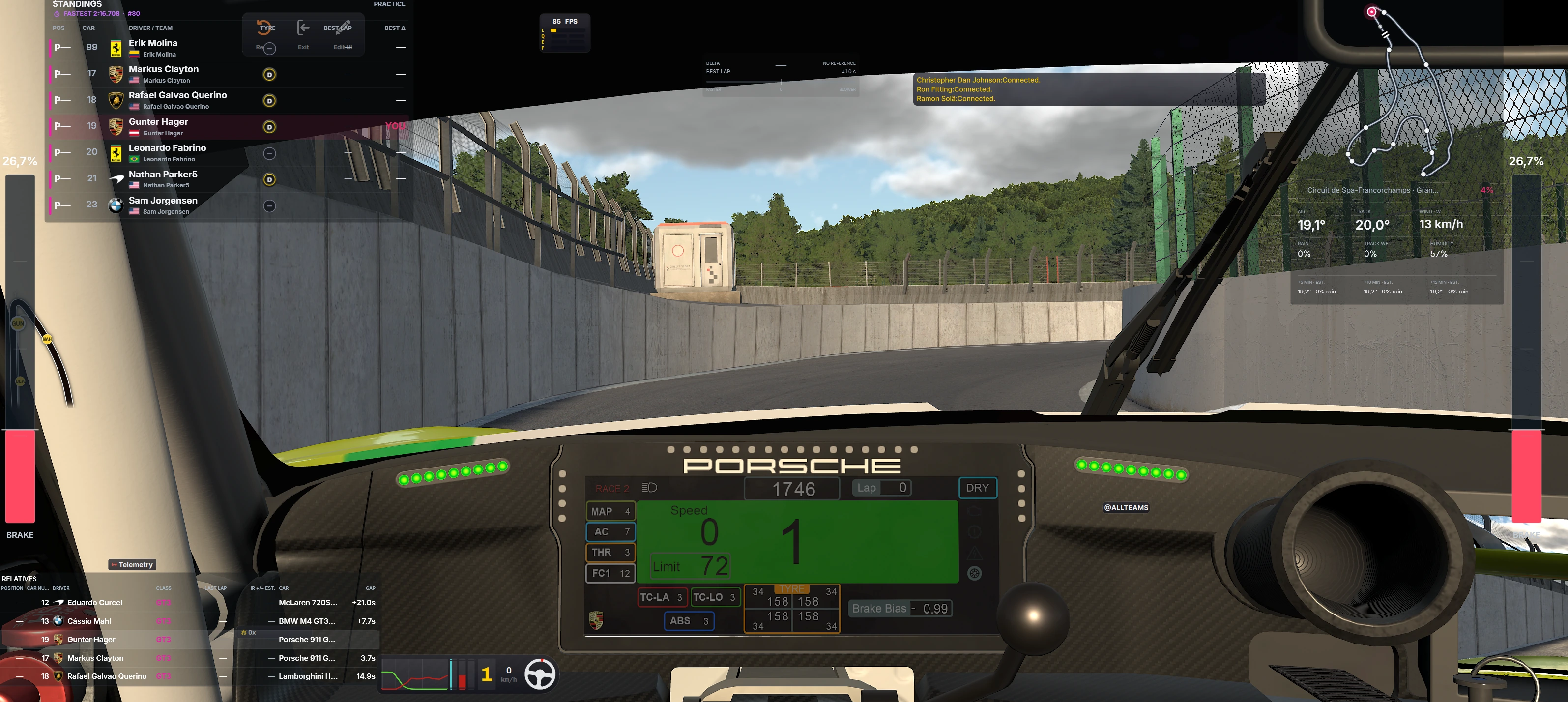
Standings, nearby cars and telemetry in the cockpit.
GridUnion connects finding a race with the people and preparation needed to run it. Discover events, build a team, organise a car entry and keep the plan connected to Discord.
Open Races → Race calendar to browse events and their individual start slots. Check the simulator, circuit layout, eligible cars, duration and entry requirements before choosing a start.
Create or join a team, find drivers and support crew, then assign a line-up to the actual car entry.
Build the stint plan, share a setup and use the connected Discord race card for participation. Driver profiles, liveries, rigs and circuit discussions connect the community between races.
Start with your own driver identity. Your linked Discord account lets GridUnion recognise the same person on the website and in race-channel interactions.
Choose Sign in on GridUnion and follow the sign-in flow. Complete any Discord approval or security check yourself; never share your password or a login code in a team chat.
Select your name/avatar, then Edit profile or Profile settings. Fill in your public display name, bio, simulations and racing details. Review which details you want other people to see.
In profile settings, open Discord identity. If it is not connected, use Connect Discord. If the wrong account was used or the link no longer works, reconnect the intended account.
The Discord Bot page checks your account, team, server connection, permissions and first race entry. Follow incomplete steps instead of creating another account or another team.
Your driver page is more than a racing card: it is a public profile with a banner, avatar, timeline, photos and lap records.
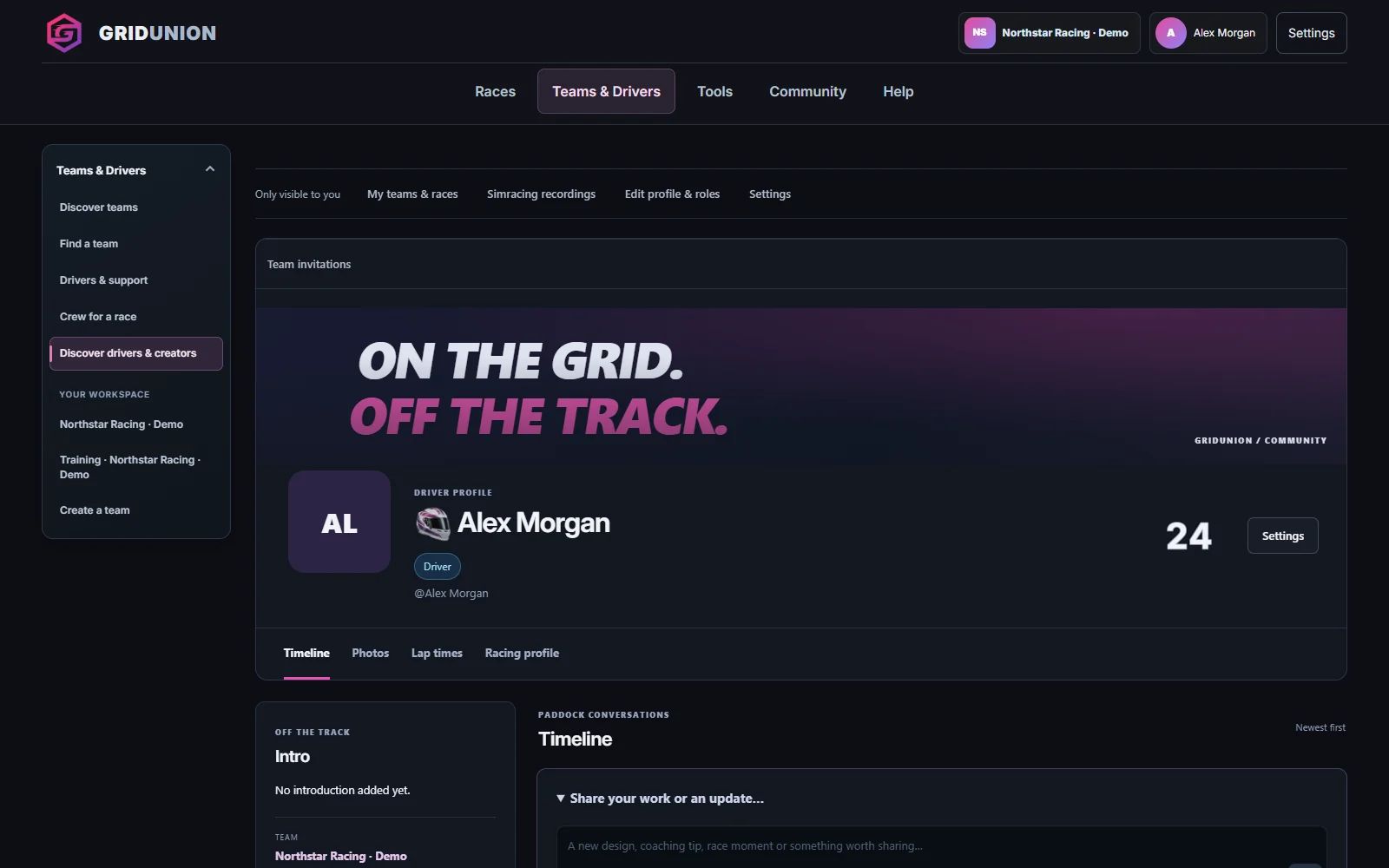
Open your own profile and use the appearance controls to upload a banner or avatar. You can also use one of your own timeline photos as your avatar. Without a custom picture, your Discord avatar remains the fallback.
In Profile settings, add your bio, simulations, preferred classes/cars and main team. The main-team choice controls your public team association; it is not an upload of a separate team logo. Team managers maintain the team logo.
Use the timeline composer for a post, up to four race screenshots, or a personal lap record. Review the public-publication acknowledgement before publishing. Upload only images you have the right to share.
You can allow or disable guest wall posts. Authors, profile owners and site moderators can remove content. Use Report for content that breaks the community rules; comments are separate from the guest-post switch.
Give your name a recognisable racing number. It appears on your profile and on the image-native Discord race card beside your driver name.
Go to Profile settings and find the personal driver-number editor. Choose a number from 0 to 999 — at most three digits.
Select a racing-number style and optionally one or two colours. Two colours create a diagonal gradient. Check the preview before saving.
A number cannot be used twice within the same team. If it is taken, choose another available number. Separate teams can use the same numbers.
Drivers who have not chosen a number receive a persistent random number. Team conflicts are handled with a team-specific reservation, so a join can require a different number for that team.
The team is the home of your members, media, race entries and Discord connection. You can explore public team pages before joining.
Open Teams & Drivers → Discover teams, choose a team and use Join team where available. Write a useful introduction: simulator, preferred class, availability and experience. Managers review applications; a request is not an automatic membership.
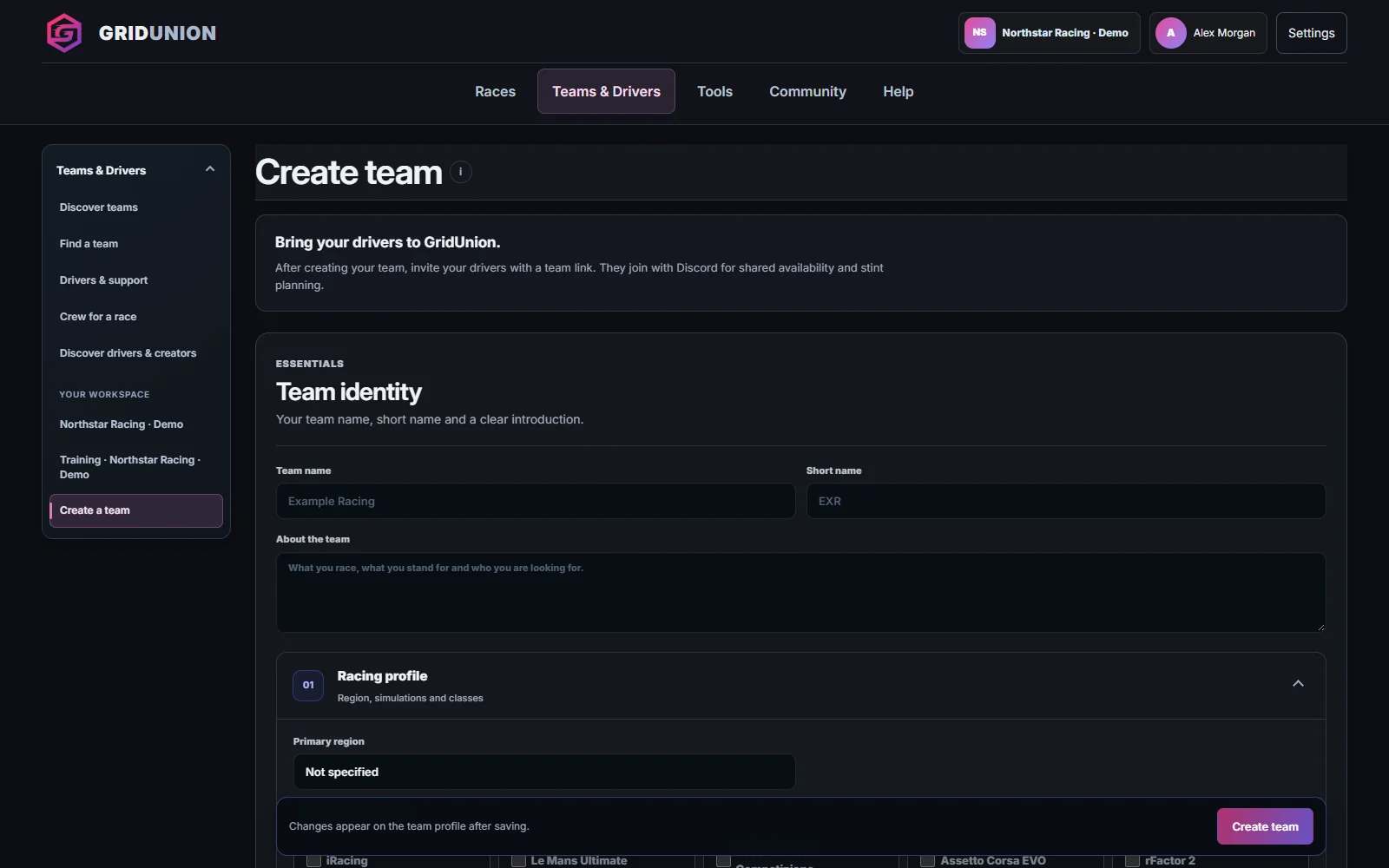
Use Create team on the Teams page. Enter a name, short name and introduction, then choose a region, driven simulations and classes. Save once you are ready to create the real team.
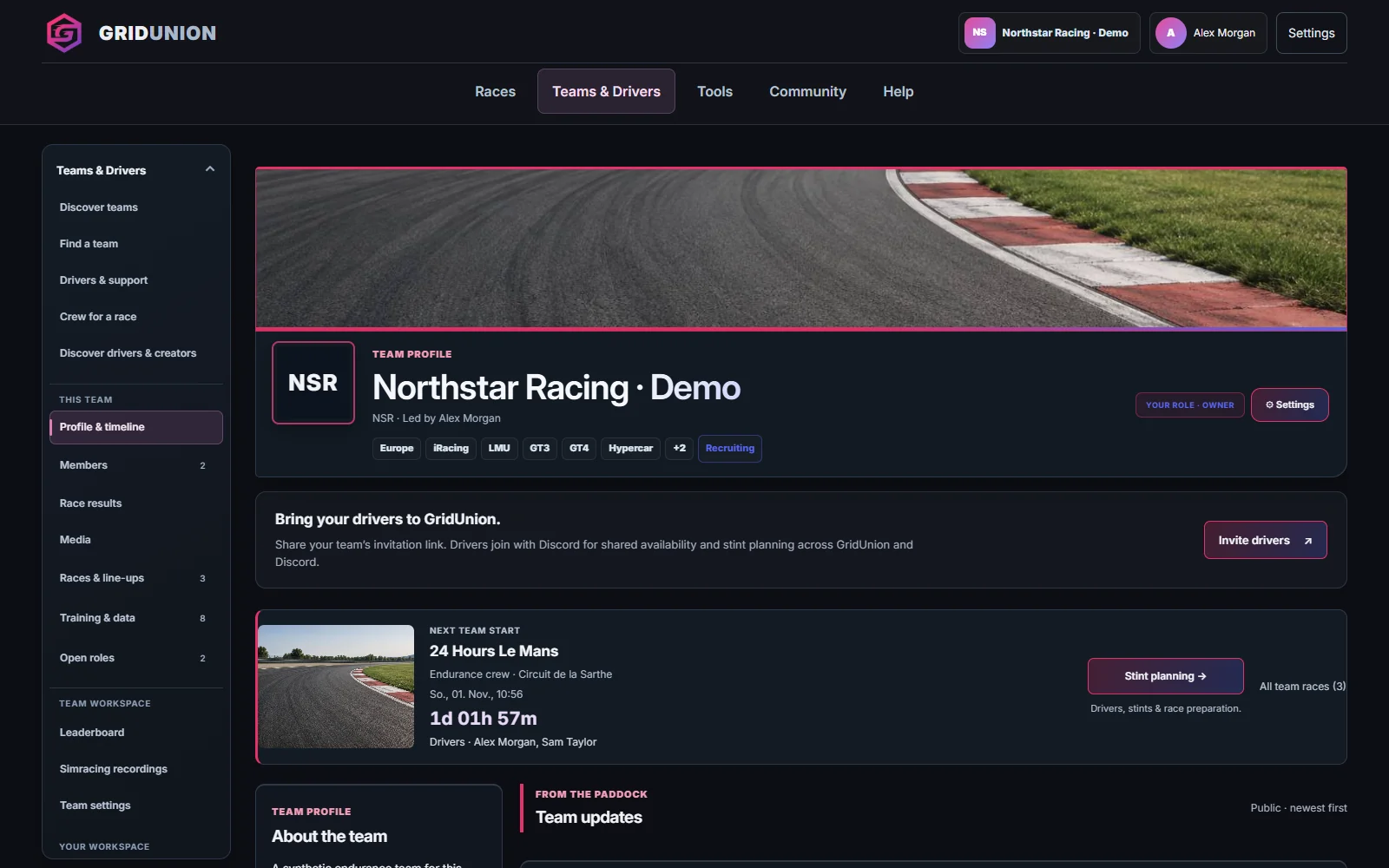
On your team page, open Settings → Profile & appearance to add your logo, wide banner, gallery and public links. Invitations and Members & roles are separate sections in Team settings; use them to invite members or review applications.
The owner keeps ownership; assign management or specialist permissions deliberately. A team role and an event crew role serve different purposes.
Your logo is part of the team's visual identity across GridUnion. The same logo-derived accent palette is used on the team page and its Discord race cards.
Open Team settings → Profile & appearance, then expand Logo, banner and gallery. A square or transparent PNG works well. Use a logo that remains recognisable at small sizes.
Use a broad team image, approximately 3:1. Keep important text and the main subject away from the extreme edges because the banner adapts to the screen.
Team gallery photos decorate the team page. To automatically put the right car on a Discord race card, upload a team livery in Liveries and tag its simulator, class and exact vehicle.
Open Profile & timeline on your team page and a connected race card. Without a logo, GridUnion uses a team abbreviation; without matching livery artwork, it uses a neutral car symbol.
On your team page, open Settings → Profile & appearance. The Edit team form keeps public identity in one place; expand the section you need instead of changing unrelated settings.
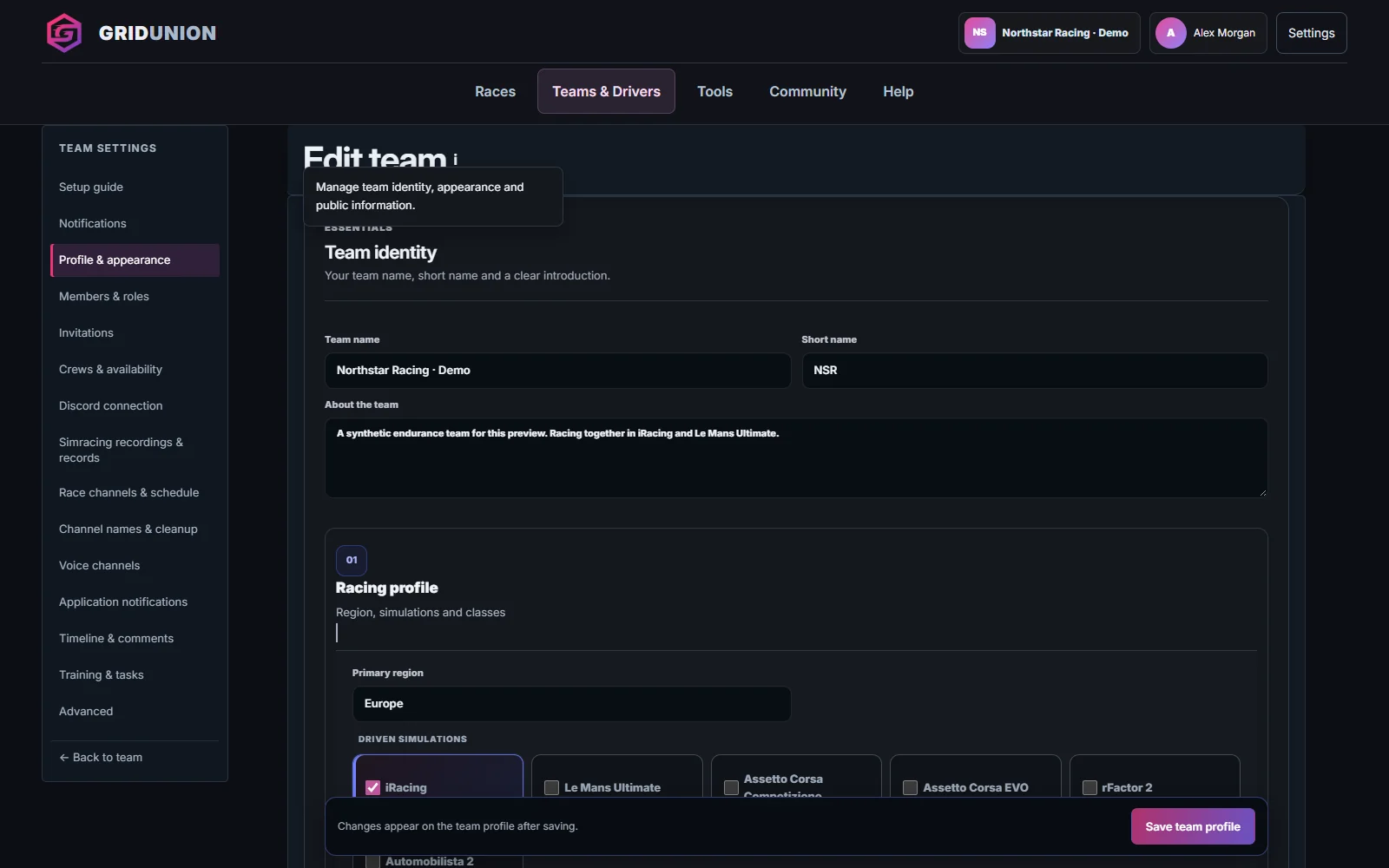
Update the team name, short name and description at the top. Racing profile holds your region, simulations and racing classes. Keep this information useful for prospective teammates.
Upload the team logo and a wide banner here. You can also add gallery photos. The Clear existing gallery option removes the previous gallery before new uploads: leave it unchecked unless that replacement is what you intend.
Add only links you want on the public team page: website, Discord invite and your social channels. Do not paste private channel links or invitation codes intended for a single person into public text.
Save the form, then return to Profile & timeline and Media on your team page to check the result. Discord connection and Members & roles are in Team settings; Races & line-ups contains race entries. Editing a banner does not require reconnecting the bot.
GridUnion roles control what people can do on the website. Imported Discord roles keep their origin visible, so you can distinguish them from roles created in GridUnion.
On your team page, open Settings, then Members & roles and Edit roles. Owners and authorised managers can inspect team roles and their permissions. Use the origin labels to distinguish GridUnion roles from Discord imports.
If Discord roles have been renamed or removed, refresh the Discord role catalogue in the role-import area. Select only the roles useful for team organisation, then use the available import/synchronisation action.
Review each imported role's website permissions and member assignments. A familiar Discord role name does not by itself grant the same authority on GridUnion.
Driver, spotter, strategist, race engineer and crew-chief assignments in a race workspace apply to that particular car entry. They do not replace team-wide membership or ownership.
A series can have several starts. Always choose the exact occurrence you intend to enter, not just the right event name.
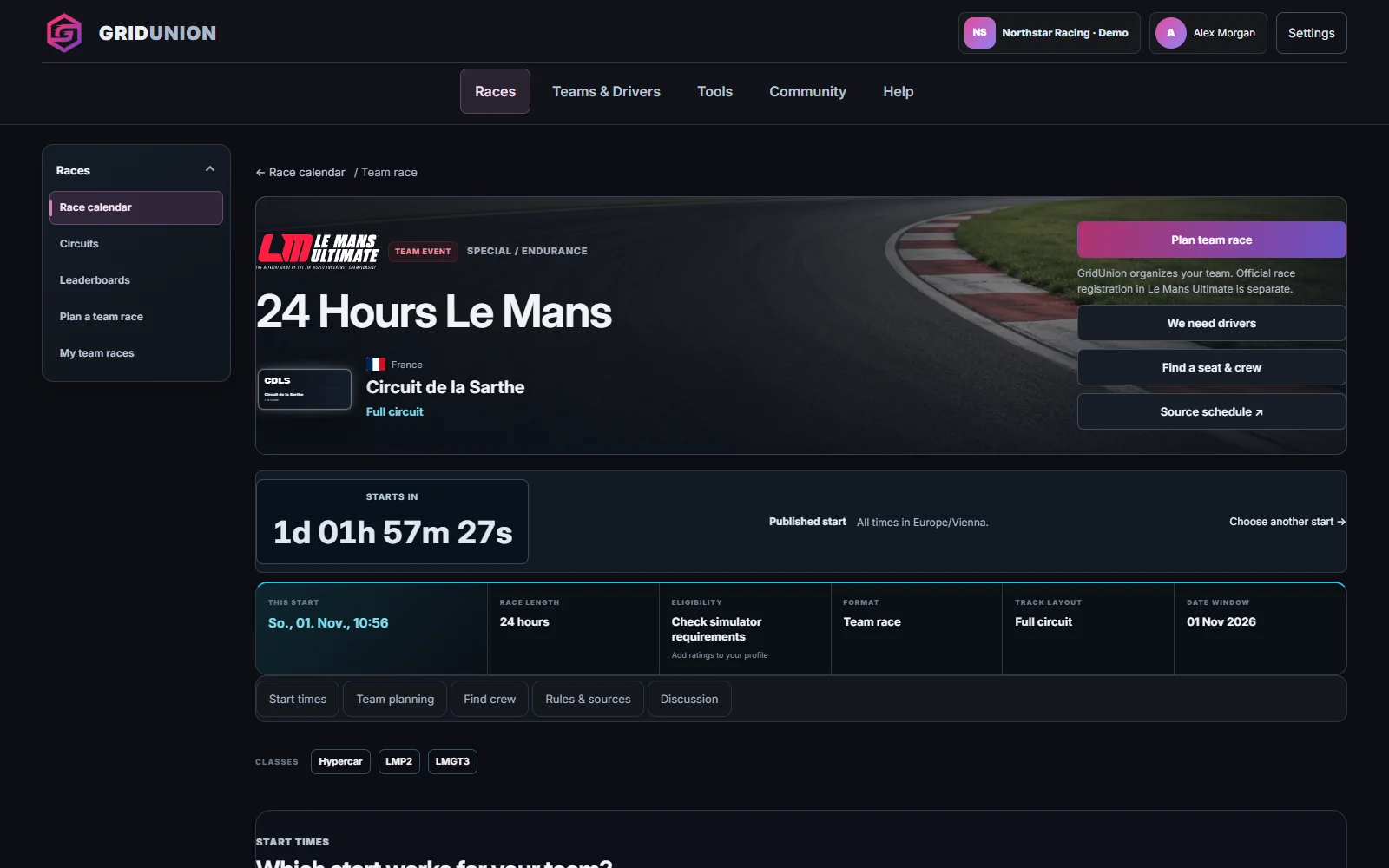
Open Races → Race calendar and narrow the list to the simulator and event type you need. Open an event for its detailed circuit layout, car classes, format and requirements.
Use Start times when multiple starts are listed to select the correct day and time. Separate starts have separate entries and recruiting. A date window or “to be announced” notice is not a confirmed start time.
Compare the listed licence or safety-rating requirement with your profile and the official source schedule. Simulator ownership, eligibility and registration remain the simulator's responsibility.
Copy the URL of the exact event page. Discord can display an event preview image. Existing Discord previews may stay cached; this public link preview is separate from the interactive team race card.
The event describes the race. A car entry describes your team's participation: vehicle, line-up, setup, stint plan and connected Discord channel.
On the chosen start, open Plan this race with your team. Select your team, a saved line-up if available, an optional entry name and the eligible vehicle. Create team entry creates the team's actual race workspace, not the simulator registration.
On your team page, open Races & line-ups and use Create custom race if you have permission. Enter the simulator, event name, circuit, start and race format/duration, then the car details. Review the timezone and channel policy before saving.
Create a separate entry for each car or line-up. Use meaningful names instead of relying on Car 1 / Car 2. Each entry has its own drivers, planning and Discord resources.
The workspace distinguishes GridUnion registration, simulator registration, line-up confirmation and setup availability. These are different checkpoints. Mark simulator registration only after the real entry has been completed in the simulator.
Use one member pool instead of several long selection lists. Drivers get the main space; support roles remain separate and easy to scan.
Open the race workspace's Line-up & crew section. Search the member pool or filter it by team role.
Drag a person into Drivers, Spotters, Pitwall viewers, Strategists, Race Engineers or Crew Chiefs. On touch devices or with a keyboard, select the person and choose Assign selected instead.
Review the assignment cards and save the line-up and crew. Use the separate line-up confirmation action when the saved list is final. Discard changes returns to the saved state.
View-only support roles do not grant strategy-editing or pit-command authority. The labels describe the event responsibility; only permitted actions are enabled for your account.
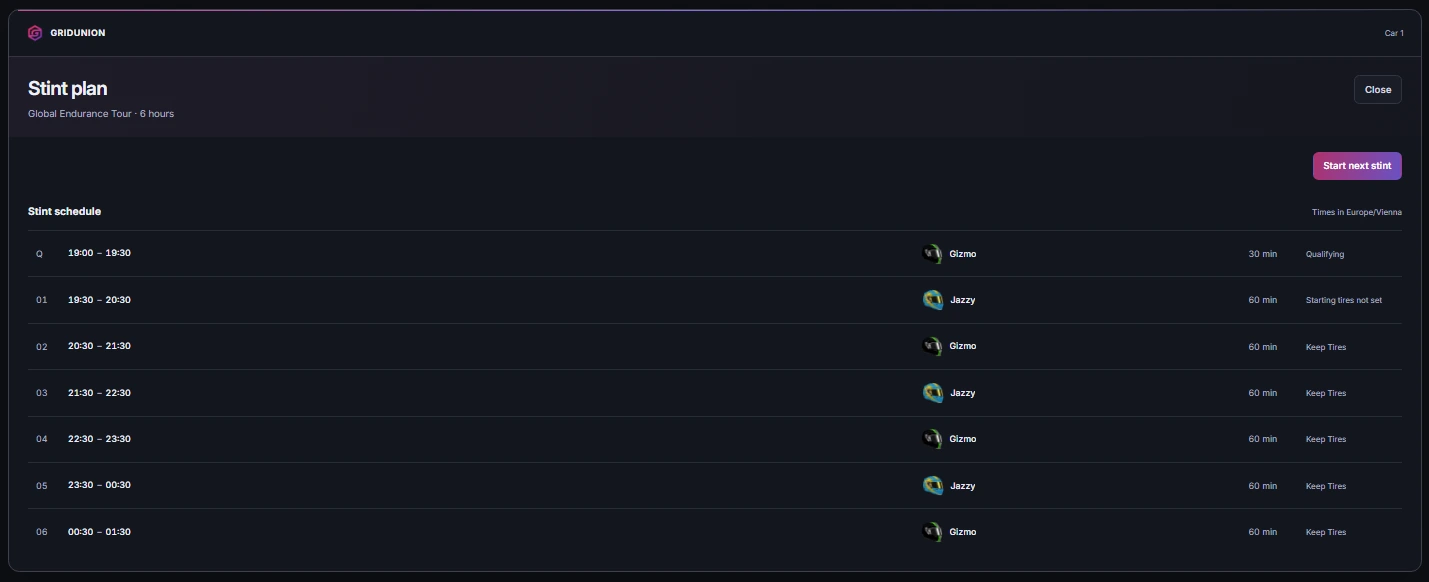
Open Stint Planner from the car's race workspace. Drivers can volunteer; authorised team staff make the official assignments.
Review race duration, expected pace, fuel and tyre settings before calculating the plan. Use measured Long Runs evidence where available, or enter your own assumptions. Managers can choose Automatic · GridUnion Long Runs for future stint estimates; manual planning remains available. Save & recalculate applies planner changes, not training uploads: Long Runs syncs automatically.
Drivers use I am available for the stints they can drive. Availability is an offer, not a confirmed assignment. Remove it if your plans change.
Managers can use the available drivers for a stint or the full member pool, then drag a driver onto that stint. Use the selection controls when drag-and-drop is inconvenient. Review time windows and overlaps before committing.
Check the assigned driver, planned start/end, tyre choice and stops for each stint. Revisit the plan after a pace change, extra stop or driver change; a plan is not live timing or a guarantee of the next pit lap.
Use Review & mark ready to check the current revision. A later change makes the previous review outdated, so review again. Start next stint is a race-day action: it closes the running segment at the current time and recalculates the schedule. Do not use it merely to browse the next row.
Long Runs is guided practice for a specific team event, supported in local iRacing and LMU practice. The app collects available telemetry automatically; your team event brings pace, fuel, virtual energy where available, stint estimates and driver comparisons together. Update to the latest app before starting the current programme.
Sign in to download GridUnion Pitwall, connect your account under Settings → Account in the app and install the latest version through Settings → Updates. You need a team car entry for the intended race. Join or configure an iRacing or LMU practice session with the same car, exact track layout, fuel restriction, tyres, weather and rules. An official practice session is a useful starting point, but you still need to check the conditions yourself. GridUnion does not create or configure the simulator session. For LMU, enable Gameplay > Enable Plugins so native telemetry is available.
Choose the correct team event/car entry, check its resource settings and tick the matching-conditions acknowledgement. Select Activate Long Runs. Leave the app running and connected. Capture and upload are automatic and can continue with the Pitwall window closed; there is no separate Save step. Deactivate Long Runs when you want collection to end. A selected event alone does not activate training.
Enable the optional coaching overlay for the current task and lap progress. The current programme asks for five usable race-pace laps on most layouts, two at Le Mans / Sarthe, or one on an explicitly identified Nordschleife layout. Nürburgring GP and Le Mans Bugatti retain five. The partial lap at activation is not a pace sample. Jeff can give stage guidance; follow the displayed instruction and keep the app updated.
When the coach shows PIT THIS LAP, follow its resource target and change all four tyres. The programme measures pit exit to the next start/finish crossing, then requires one complete on-track lap. Next, return to the learned box position without changing tyres or adding fuel or virtual energy, and record the retained-tyre outlap. You control pit selections and driving. Continuous supported telemetry must confirm the stop; ambiguous service or a reset to the garage is not a completed test.
After the shorter tests, follow the coach into the extended stint. The current near-full evidence check needs at least 80% of the relevant resource at the start and 70% consumed across consecutive usable laps: virtual energy for supported LMU energy cars, fuel otherwise. Shorter runs are not discarded; sufficient usable samples can still provide provisional consumption and pace estimates. Never run out of fuel or energy just to complete a milestone.
The team event shows usable laps, typical pace, fuel per lap and per hour, estimated laps and stint duration. Supported LMU energy cars use virtual energy as the primary range input, with litres measured separately. Litres per 100% energy is a consumption estimate, not a fixed tank-capacity or BoP conversion. Pit observations separate service types and outlaps. Tyre changes require observed evidence; ambiguous changes are not marked complete. Supported per-wheel wear forecasts are estimates, not continuous tyre measurements. Progress means evidence coverage, not percentage accuracy.
Open Training & data in your team’s race workspace. Each contributing driver has their own usable-lap count, best and typical pace, fuel use, projected stint and available pit/tyre evidence. These data update automatically and stay subject to team access. Check car and conditions before comparing; incompatible samples should not be treated as interchangeable. Team estimates use supported evidence, not an unconditional average of every lap.
In Pitwall → Long Runs, choose Long Run for the full guided programme, Short Run for consecutive clean race-pace laps with the configured minimum starting fuel, or Qualifying Practice for clean laps within the team’s specified lap-start fuel range. Qualifying best laps stay separate and never feed race-fuel or stint estimates. Capture still requires local iRacing or LMU practice, not a qualifying simulator session.
Choose Start new or a previous unfinished Long Run before activating. GridUnion rechecks driver, event rules, car, exact layout, tyres, native wetness, resource basis, tank limits and track temperature within 5 °C. Evidence must be under seven days old. In the current programme, verified pace progress can carry over, but pit tests repeat to establish the current tyres and box position. In this beta, LMU energy-car training can only resume in the same simulator session; another simulator session requires a new run. Unknown or incompatible conditions require a fresh start; earlier measurements remain in history.
The initial partial/outlap is never a race-pace sample. In the current programme, first cautious estimates need three usable full laps; shorter-track pace tasks may require more laps before the next stage. Previous attempts stay in the event’s private driver history under Individual runs & comparable averages. Only compatible evidence is combined. Comparison values do not turn separate attempts into one continuous stint.
Open Team → Settings → Training & Tasks. Managers with stint-planning permission can enable a private task board, choose required programmes and Long Run milestones, set short-run lap/fuel targets and qualifying lap/fuel limits, and apply these to event drivers or all active members. The board is off by default; drivers can still practise. Use Training rules for this event in the event’s Long Runs area to override the defaults, for example requiring only a Short Run for a two-hour race. Status is complete, partially complete or not started based on evidence. Active coaching retains its start-time rules; reactivate after a rule change. Short Run and Qualifying do not grant full Long Run rewards.
The app uses native iRacing surface categories, not an invented wetness percentage. A sustained surface-group or tyre change starts a separate collection block; the transition lap is excluded. Temperature uses broad bands. Older observations remain labelled as legacy data and are not silently reclassified. Driver cards and estimates identify the conditions they describe.
First choose Dry, Damp or Wet under Planning conditions in the event’s Long Runs area. Managers can then select Automatic · GridUnion Long Runs in the stint-duration settings to use matching estimates for future timings. Without matching evidence the previous plan stays unchanged; wet evidence never silently replaces a dry plan. Manual mode remains available, and current/completed stints and protected assignments are preserved. Review the plan, pit allowance and event rules before relying on it. Estimates are not guaranteed pit laps or automatic simulator commands.
Verified training milestones can award profile points and highlight a driver’s contribution in the team’s internal timeline. Clean-lap, supported full-stint and complete-programme milestones have eligibility checks and limits; simply leaving the app open does not earn them. Telemetry consistency checks are not tamper-proof anti-cheat.
Check that Long Runs is activated, the acknowledgement is ticked, the intended event is selected and the app shows local iRacing or LMU practice telemetry. A race, replay, remote feed, mismatched car/layout or interrupted telemetry can prevent usable evidence. Finish a complete clean lap after activation and read the current status. If laps appear locally but not on the website, check the account connection and sync status. Keep the app updated and send support the version and a cropped status screenshot if it persists.
The race workspace keeps the private setup and entry status close to the driver line-up.
An authorised team member uploads the setup in Registration / Race details. The maximum setup size is 10 MB. Make sure it matches the simulator, car and event.
Participants can download an uploaded setup from the race workspace and the connected Discord race post. No file means no download link. The link does not install the setup in your simulator.
Use the existing entry to change the car, line-up or setup. Review the saved result and Discord synchronisation status. Use Retry Discord Sync if an authorised account sees a failed connection.
The team defines race-channel naming and automatic deletion. An event can inherit that rule, override it, or keep its channels. Review the displayed policy before relying on a channel as permanent storage.
The bot links your team's website entries with the Discord server your team actually uses. Use the setup checklist to see what is still missing.
From the Discord bot page or Team settings → Discord connection, use Add bot & connect server. Choose the intended server and complete Discord's permission prompt. You need the appropriate server and GridUnion team authority.
Choose where race text channels should be created. Check that the bot can see the category and perform the required channel, message and attachment actions. The setup check is preferable to blindly granting Administrator.
Automatic race voice is off for new connections. In Team settings → Voice channels, opt in only if wanted and select the category and any additional allowed roles. Existing teams keep their previously saved choice.
Use /iracing for upcoming official team/special events and /lmu for LMU team/endurance events. Team class/licence filters affect the bot's schedule results, not the entire website schedule. /schedule_refresh is limited to members with Manage Server.
The shared race-channel message uses a large GridUnion-rendered image with team colours, car artwork and the participating drivers. The actions underneath remain native Discord buttons.
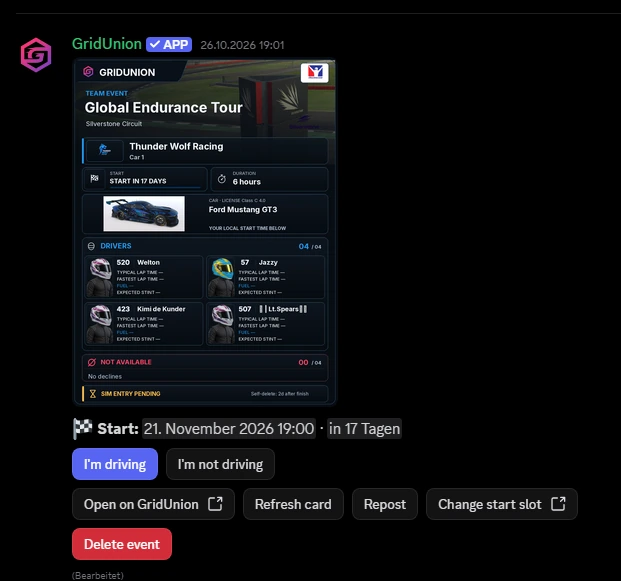
Check the event, team/car entry, circuit, start, duration and driver roster. Driver names use their linked Discord identity, with their GridUnion number alongside. Spotters and other supporting information use smaller sections.
Choose I'm driving or I'm not driving for that entry. The shared channel message is refreshed after participation changes, so everyone sees the same updated roster — it is not a separate personal card.
Use Open on GridUnion for spotting, detailed management, the complete line-up and planning. Delete event remains permission-protected. A setup download is available separately when a setup has been uploaded.
The native Discord timestamp can display the start in each viewer's timezone. A shared image cannot show different local times to different viewers at once. Its countdown updates in broader steps; it is not a second-by-second clock.
Liveries is a gallery for presenting finished work, not a paint editor. Paint your car in your usual tools, then publish the artwork with the correct GridUnion tags.
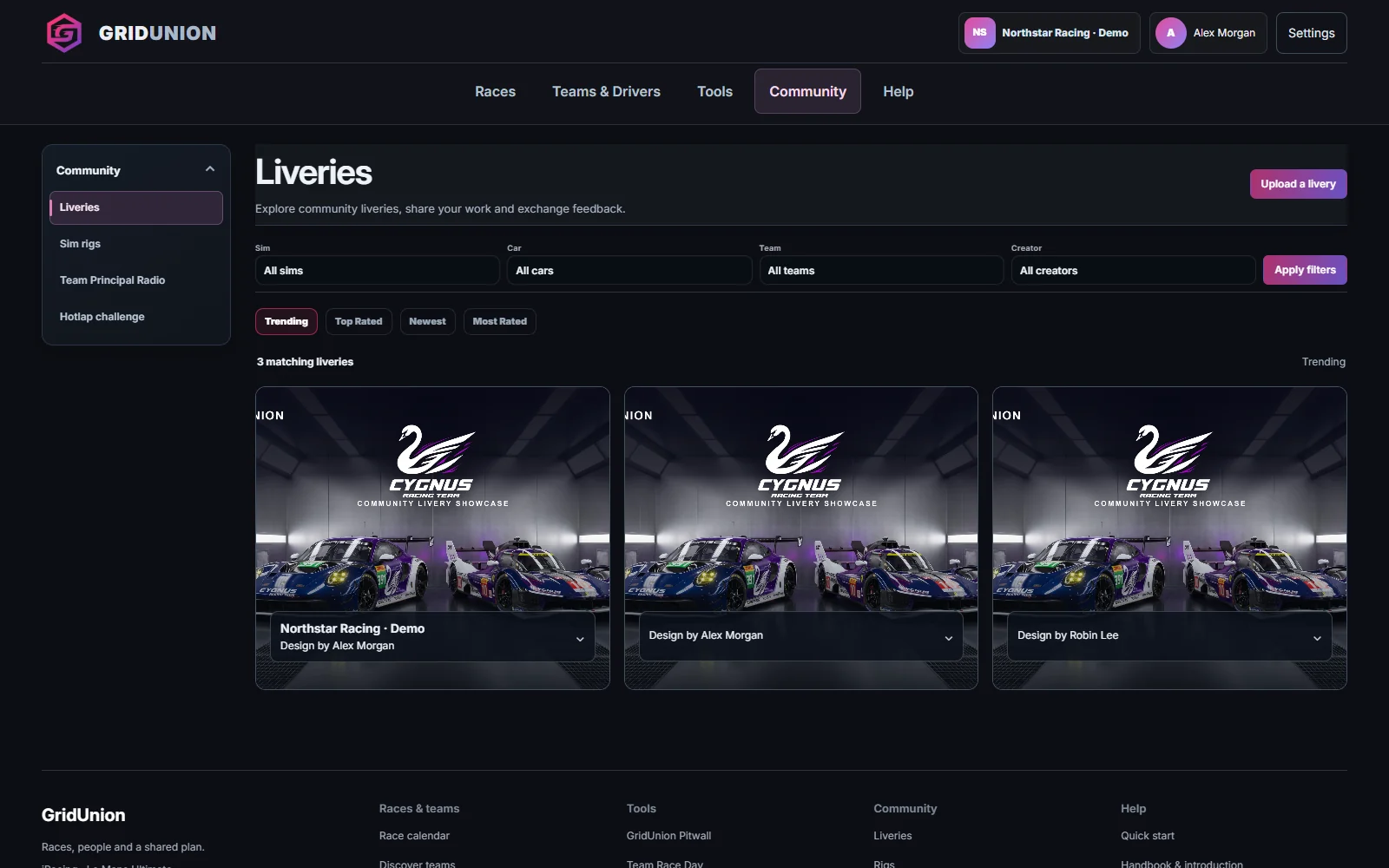
Enter a title, then select simulator → class → exact vehicle. Use the proper model rather than just typing GT3 in a description. Add a short description of the design.
Under Publish for, choose your team if the artwork should be used for that team's race entries. My driver profile is a personal public upload; Private is visible only to you and is never used for a public race-card image.
Add a main JPG, PNG or WebP image (up to 12 MB) and optionally up to four additional views. Prefer a clean image showing the entire car. Confirm your publication rights, then publish.
Register that same team with the same simulator and exact vehicle. GridUnion can then select its latest matching public team livery for the Discord card. Another team's car, a private upload or a gallery image without the matching vehicle tags is not substituted.
Show the hardware behind your racing. Rig profiles combine photos and equipment details so other drivers can find ideas and compare setups.
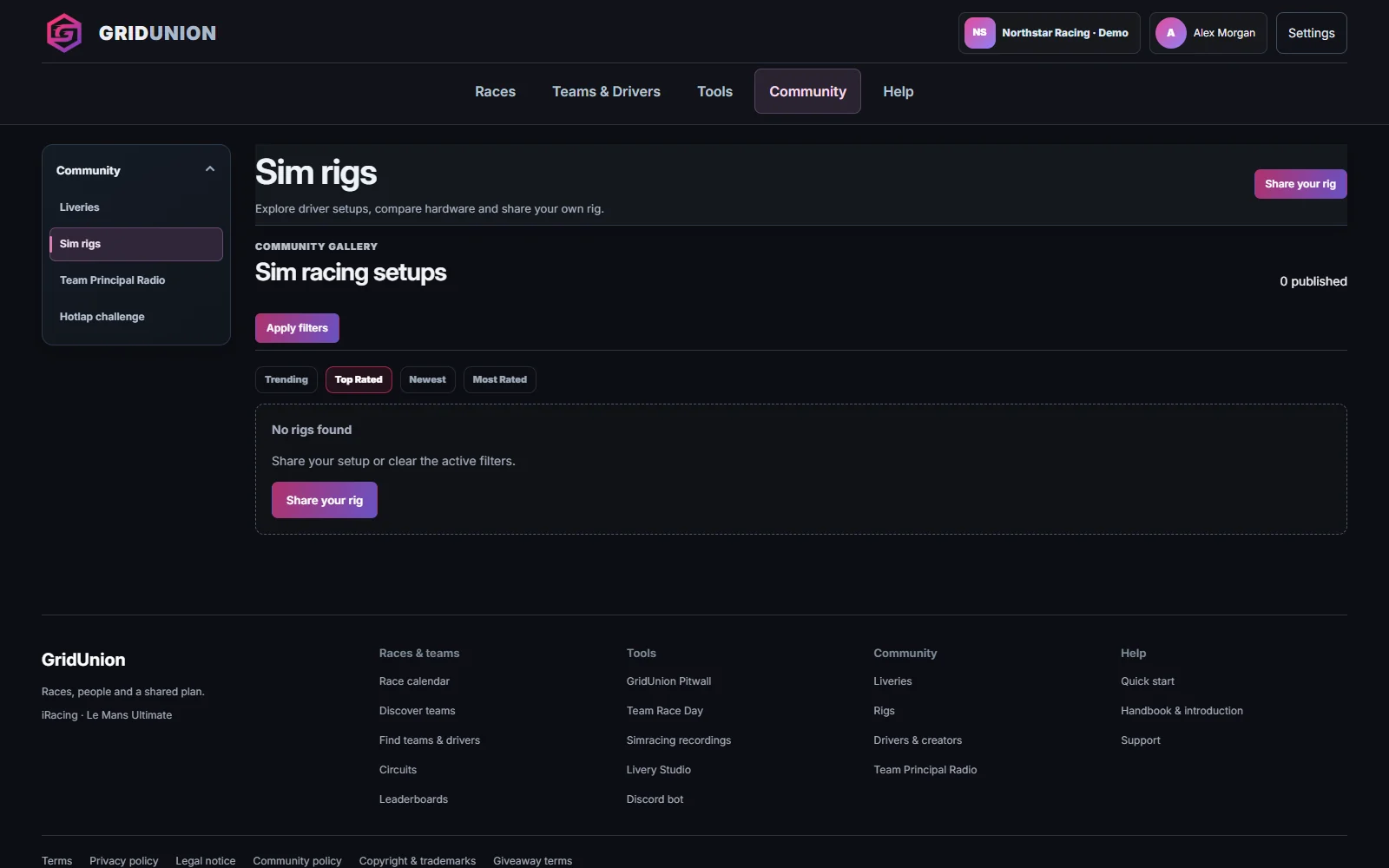
Choose Share your rig in the Rigs gallery or My rig in Profile settings. Give the setup a name and describe what makes it work for you.
Fill in the available wheelbase, pedals and display/VR fields, then add useful pictures. Remove identifying household details or private information from photos before uploading.
Review the rig's visibility and save/publish controls. Check its public page after saving; a draft or unpublished setup does not belong in the public gallery.
Use the gallery's hardware filters and Trending, Top Rated, Newest or Most Rated views. Rate fairly and leave constructive feedback where discussion is available.
A circuit page brings together the venue, available simulator layouts, pictures and upcoming races. Check the layout as carefully as the circuit name.
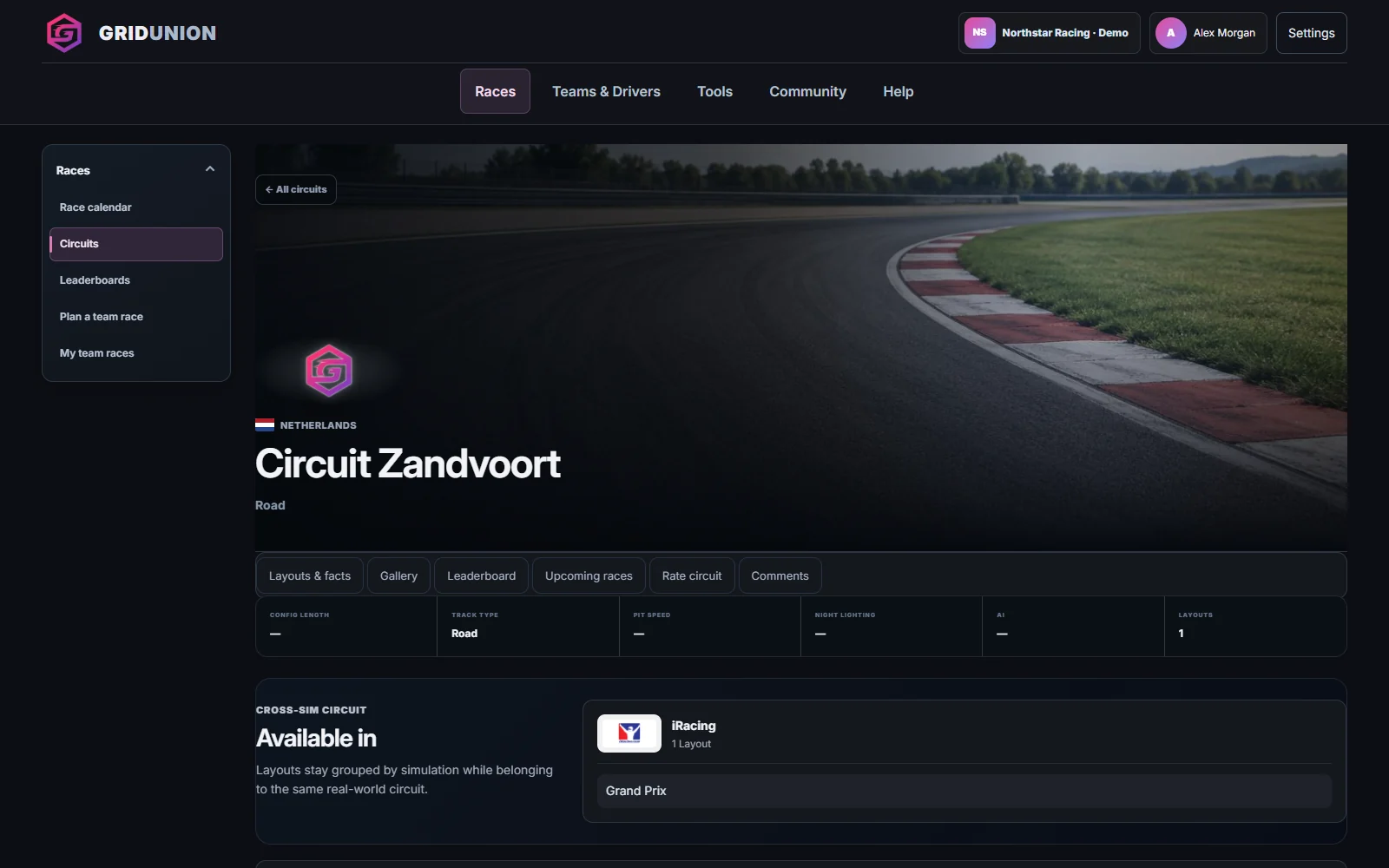
Use Circuit profile on an event, or browse the Circuits directory. Compare the event layout with the configurations listed for your simulator; similarly named configurations can be different.
Use Layouts & facts and Gallery for an overview. Length, pit speed and available features describe the listed configuration; always follow the rules of your actual simulator session.
Upcoming races links to individual events at this venue. Use Comments for useful circuit observations and Rate circuit for a considered community rating. Do not enter a personal lap time as if it were a verified circuit result.
Add a favourite circuit in Profile settings. Store your own lap records on your driver timeline with simulator, exact layout and car, and make clear that they are self-reported.
Find teams & drivers separates people offering skills from teams recruiting. It also separates a long-term seat from help for one specific event. Open it from Teams & Drivers in the main navigation.
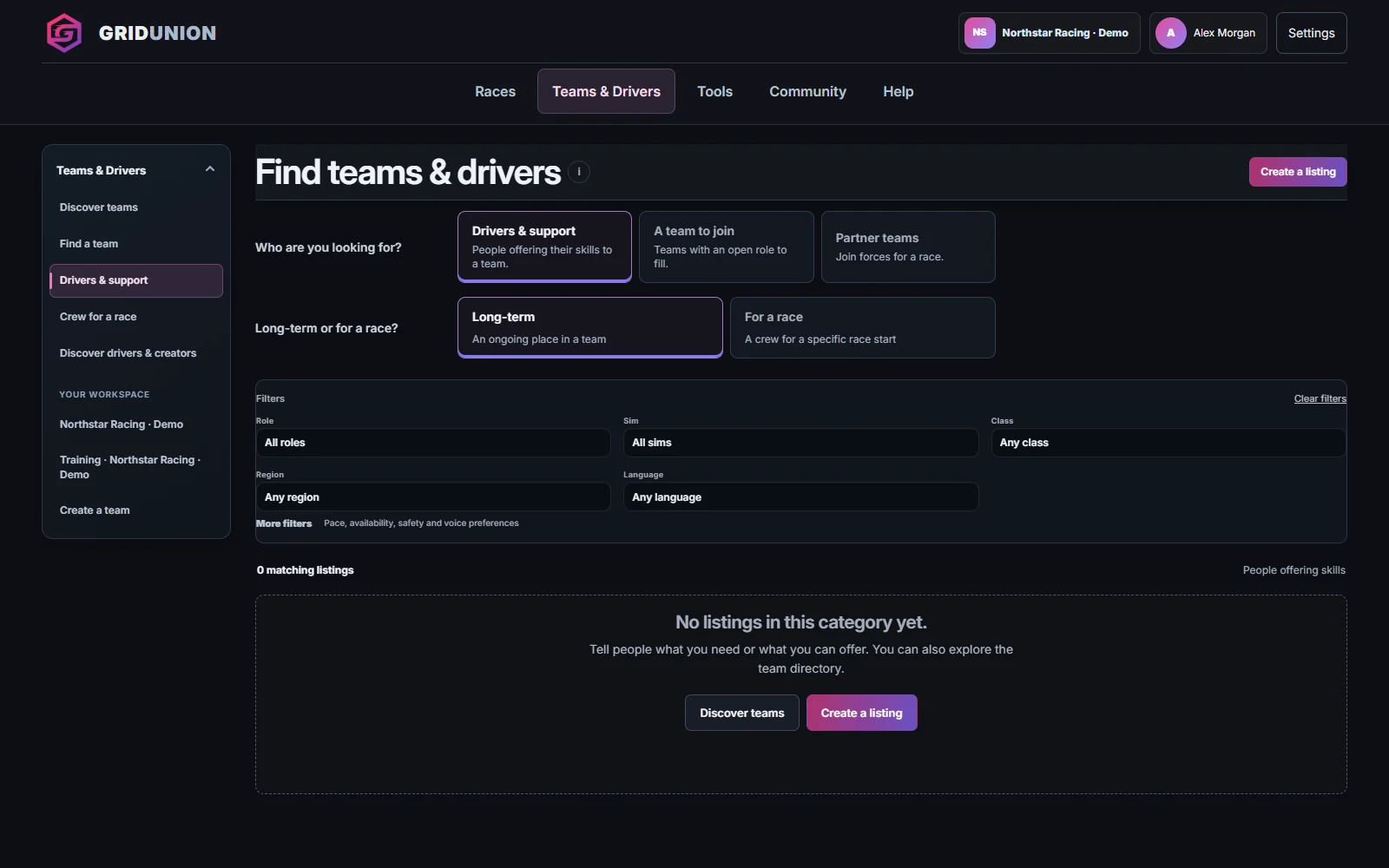
Browse Drivers & support to find drivers and specialists, or A team to join to find an open team role. Open a listing for the full requirements and contact details.
Choose Long-term for an ongoing team relationship. Use For a race, or the event page’s Find crew area, when you need people for an exact start slot.
Filter by role, simulator, class, region and language. More filters includes pace, availability, safety and voice preferences. Clear filters if the result list looks unexpectedly empty.
Use Create a listing and choose the appropriate offer or request. State the role, simulator, expected availability and relevant requirements. Keep the listing current or close it when the place is filled. A listing is not a race entry or a confirmed stint assignment.
Use the right place for the conversation: a driver timeline for personal race moments, circuit/event discussions for shared knowledge, and Find teams & drivers for recruitment.
On your own driver timeline, add simulator, circuit/layout, car and lap time. These are self-reported personal records, not verified telemetry or an official leaderboard. Include the exact layout and conditions in your post.
On a circuit or event page, use the relevant discussion section for braking points, setups or strategy. Keep race-slot recruiting separate from long-term team recruitment in Find teams & drivers.
Timeline posts, comments and received likes can contribute to profile points. Self-likes are blocked; daily limits apply. Deleted content or withdrawn likes can remove the related credit. Reposting is not a way around the limits.
Team notifications surface items such as applications and Team Principal Radio activity for permitted users. Product-update DMs are a separate opt-in: read Updates and subscribe only if you want them.
Long Runs can reward verified training milestones with profile points and recognition in your team’s internal timeline. Eligibility and daily limits apply. See the Long Runs guide for the programme and the evidence it needs.
Start with the state shown on the live page. This guide uses snapshots, so people, dates and entries in its pictures will change.
Check that you are signed in with the intended personal account, belong to the team and have the required permission. Public team pages intentionally hide private management tools.
Check the team logo in Team settings → Profile & appearance. For the car, check the livery's publishing team, public visibility, simulator and exact vehicle tag against the car entry. Generic fallbacks appear when no valid match exists.
Check the website's saved state and sync status first. Reopen the channel; a cached image can lag behind. For stale role choices, refresh the role catalogue. For missing race results, check the command filters and known start times.
See the Pitwall chapter below for dashboard modules, overlay copies and inline settings.
Open your team event, then choose Race Day. The entry owner and assigned drivers or crew use the same private workspace on desktop or phone. Access follows the existing entry-specific Pitwall roles.
The upcoming stint list shows planned times in your local timezone. Live driver and fuel values appear only while the desktop app shares fresh telemetry. A schedule is not proof of who is actually driving.
Tick your own readiness, setup, simulator registration and voice checks. Ready expires after 30 minutes. An on-page warning highlights an approaching handover without a fresh ready confirmation. This does not operate the simulator or send new notifications.
Enter measured fuel use, lap time, allowed tank and total pit loss. Add a repair delay or initial slow laps. Preview the result; a strategist can save Plan A–E for the crew. Scenarios never replace the operational stint plan, and their stated model does not evaluate tyre, energy, driver or Fair Share rules.
Record an incident or team note in this entry. The latest 30 notes stay in the private race workspace. Nothing is automatically published to the team timeline or Discord.
Open GridUnion in your mobile browser and install it or add it to your home screen using the browser menu. On iPhone, use Safari’s Share menu. You still need internet for live information. The offline screen contains no private team data.
Dashboard, overlays, training, setups and GridUnion in one Windows app.
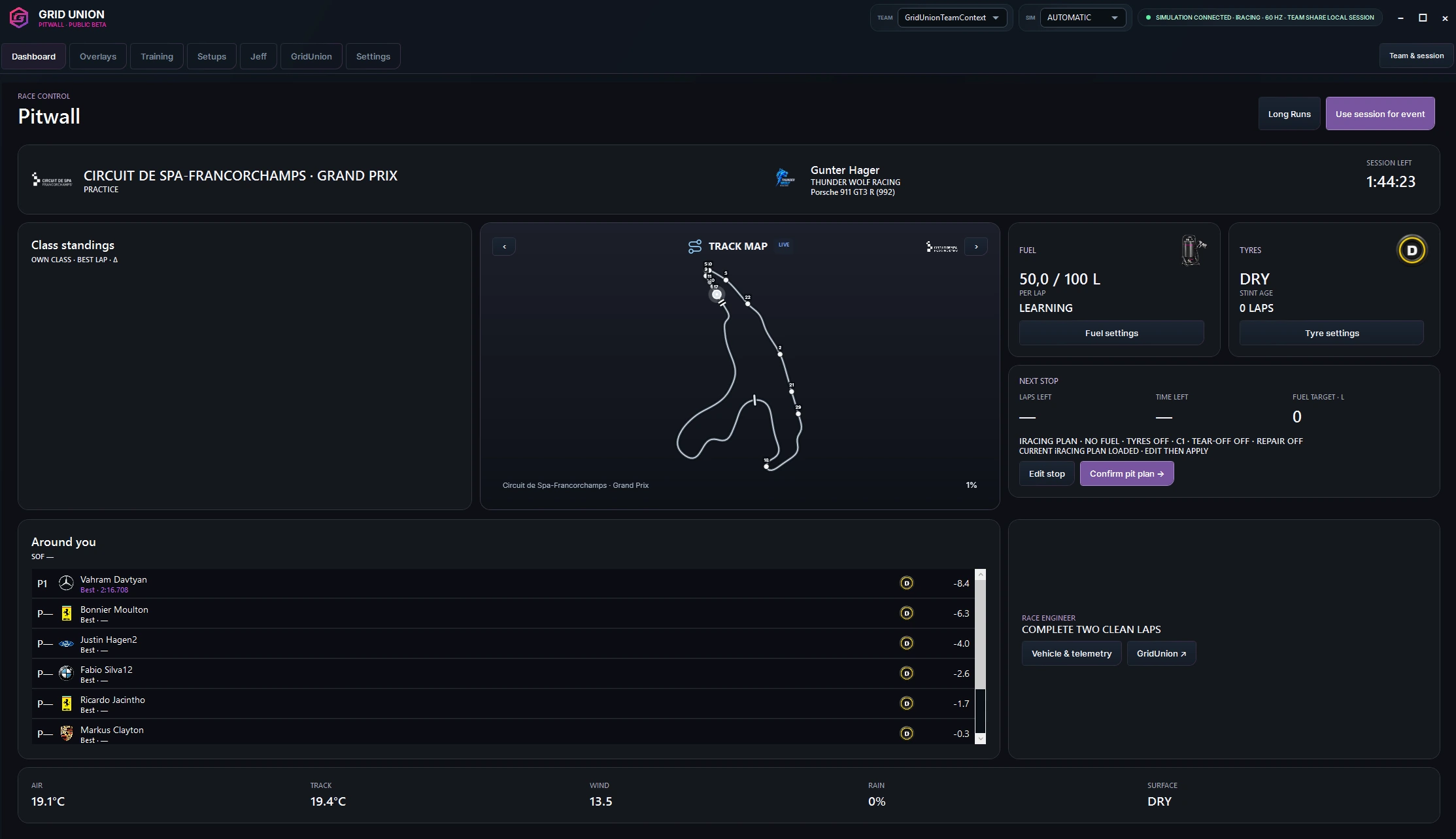
Open Dashboard for timing, track position, fuel, tyres and the next stop. Use Training for Long Runs or select Use session for event to collect normal driving data.
Open Overlays, choose a module and select its copy. Content, Appearance and Size & position stay beneath the preview.
Use independent copies for different views, or link their content and appearance. Visibility and placement stay separate for each copy.
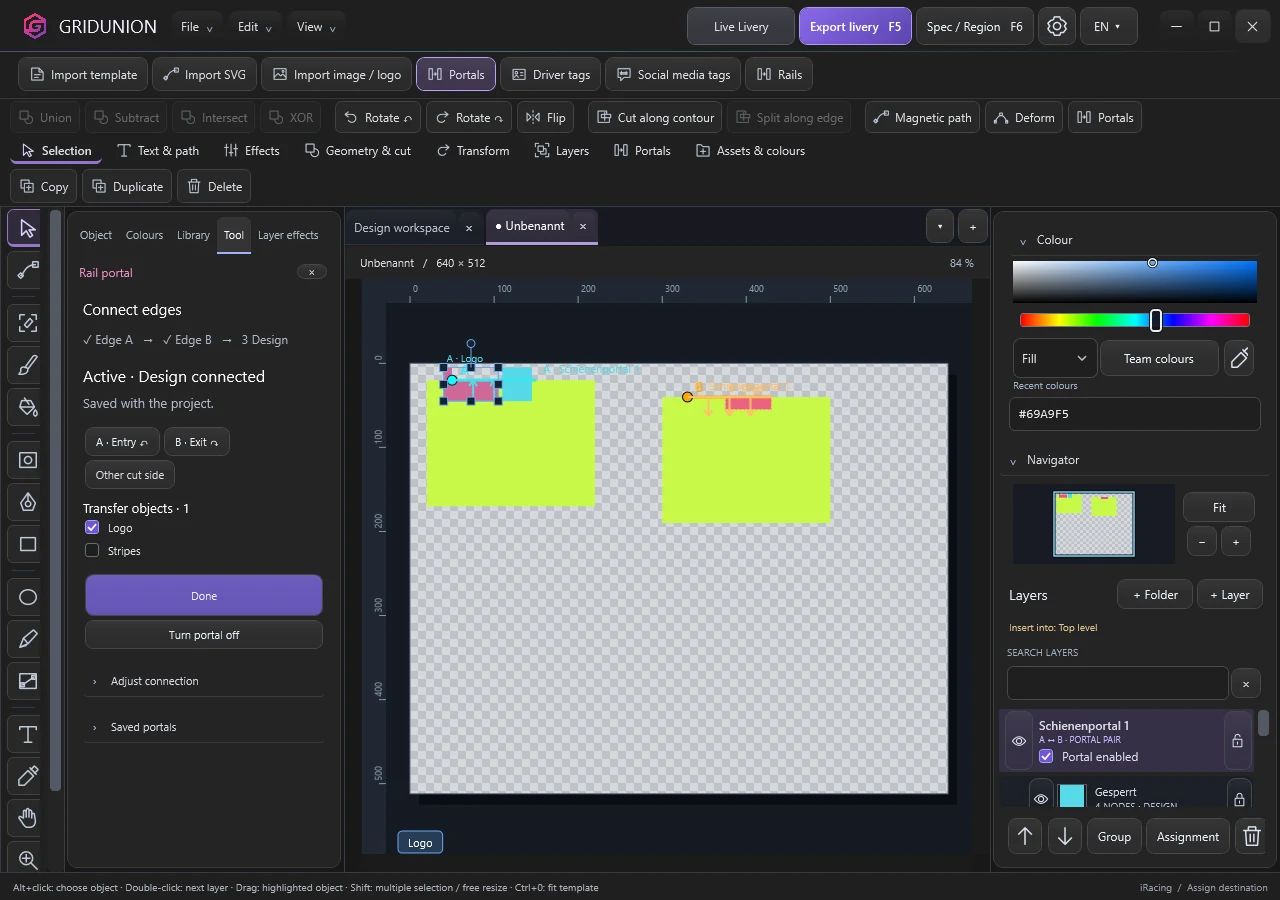
Follow prepared panel outlines, connect your design across panels and keep your export up to date.
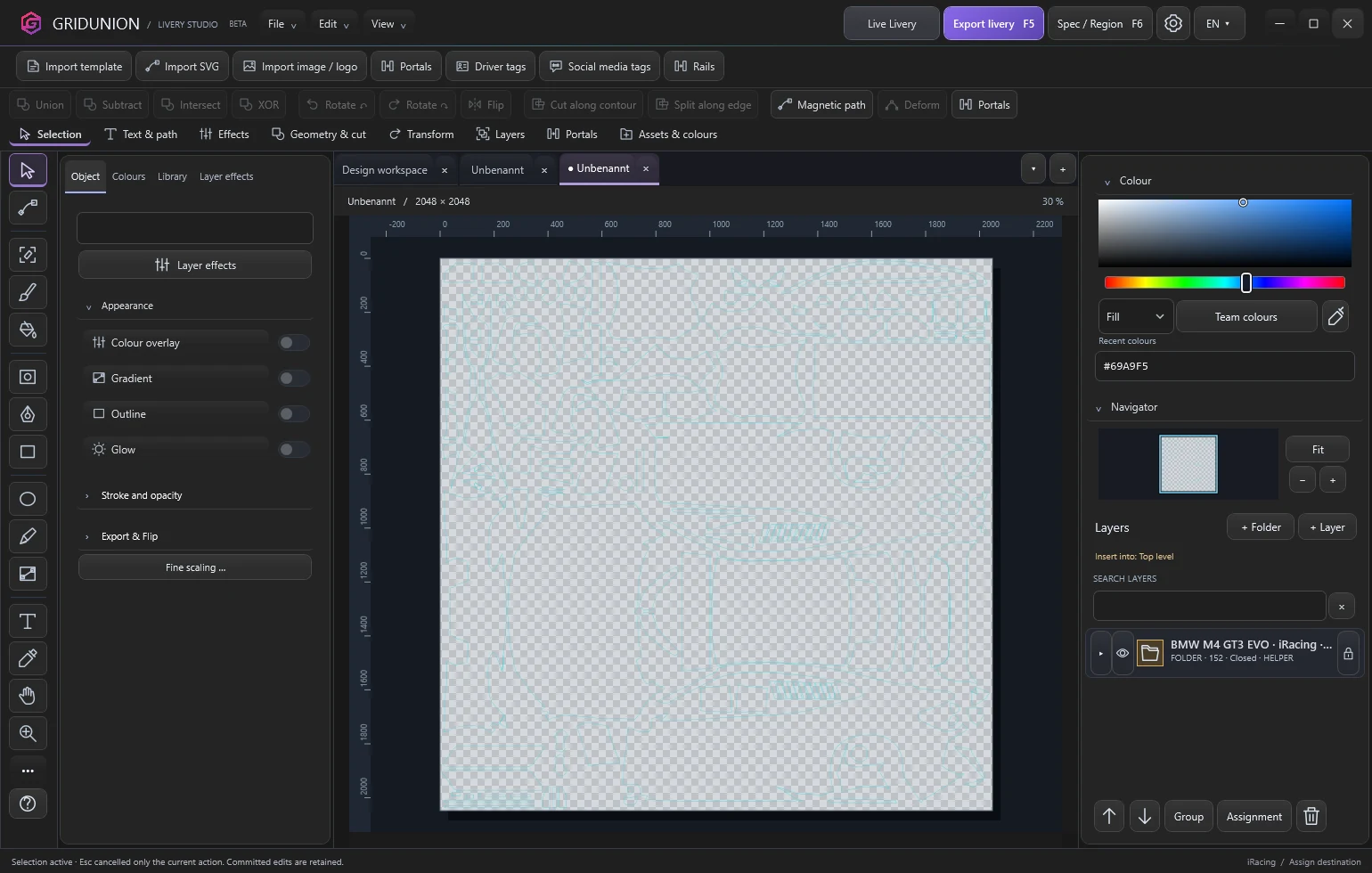
Open your template and its matching vehicle rail preset. The catalogue contains 30 presets for 41 template variants across iRacing and LMU; use the exact matching variant.
Select the section on rail A, then place B on the destination rail. Adjust direction and choose the design objects in the same tool panel. Review the preview before applying.
Use Live Livery Sync for your configured export and refresh the simulator texture when needed. Open Showroom in the right sidebar and connect the open simulator showroom. iRacing supports mouse controls; LMU offers preset camera views and local image zoom, without free mouse rotation.
Only iRacing and Le Mans Ultimate lap times and telemetry. This collector does not record your screen, microphone, keyboard or other apps.
Connect your GridUnion account. The app saves supported simulator laps and can import existing iRacing / LMU files.
Open Settings → Simracing recordings in the app. Pause recording, choose race or practice data, and control background import and Windows startup.
Only you means the simracing data is visible to your account. Historical imports without an unambiguous matching team event are not automatically shared with a team.