
GridUnion Pitwall.
Your race. Your workspace.
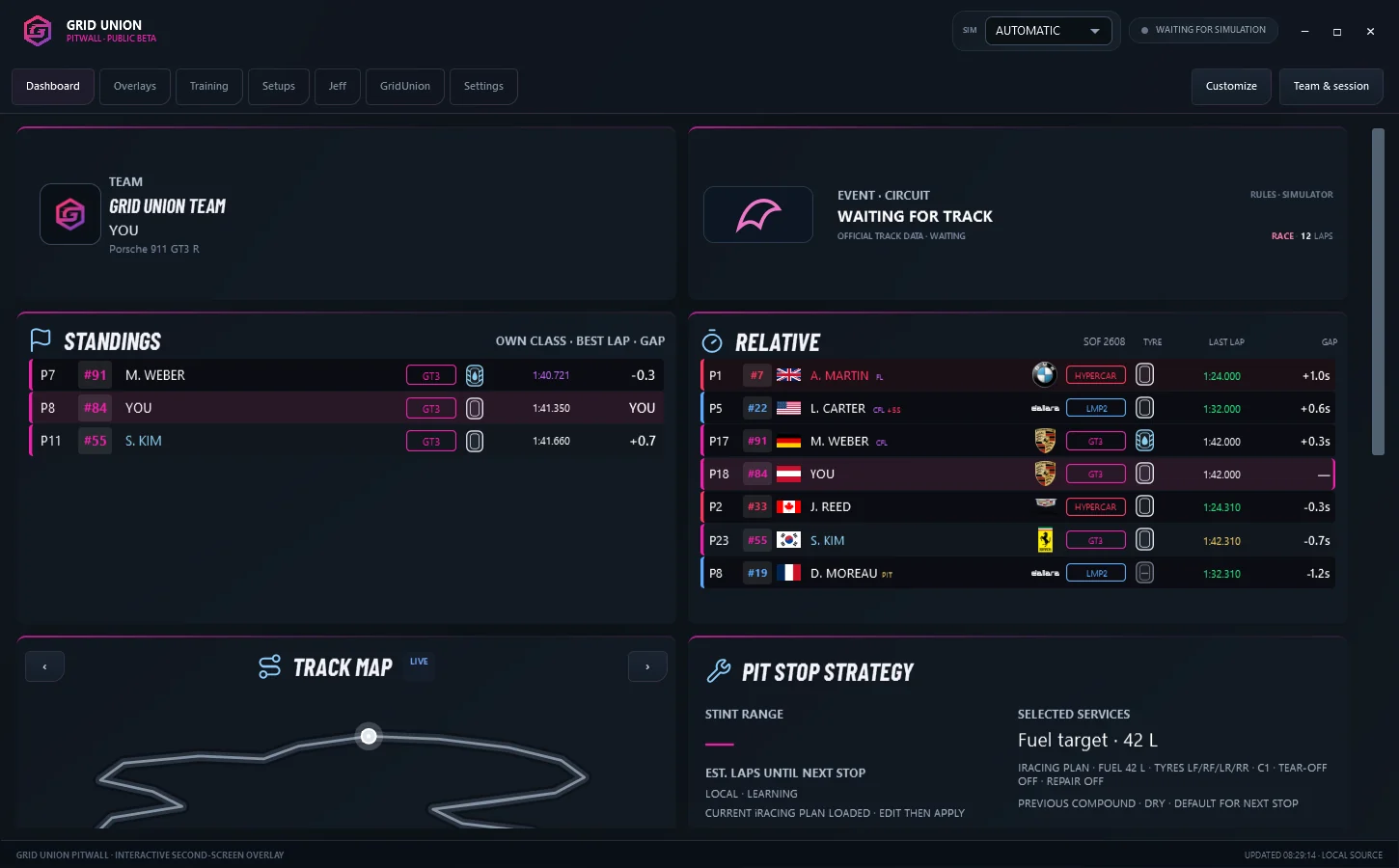
Dashboard, overlays, training, setups and GridUnion – in one app.
iRacing & Le Mans Ultimate. No team setup needed for local overlays. Check simulator support ↓
Sign in to download · 2.8.0-beta.158Sign in with Discord to download. No beta code required.
349.3 MB · Windows x64 installerVerify your download
SHA-256: de6d0b350ce34196a7463f4c1e39841e11347d8b723f0516580ee67e469271bc
Beta software. Bugs and missing data may occur. Verify important information in your simulator. The installer is not publisher-signed; do not disable Windows security protections.
Your modules. Your layout.
Drag modules and resize their edges or corners. A fine grid and magnetic edges help you align them. Your layout stays saved. Open the GridUnion tab to use the website inside Pitwall.
One overlay. Your settings.
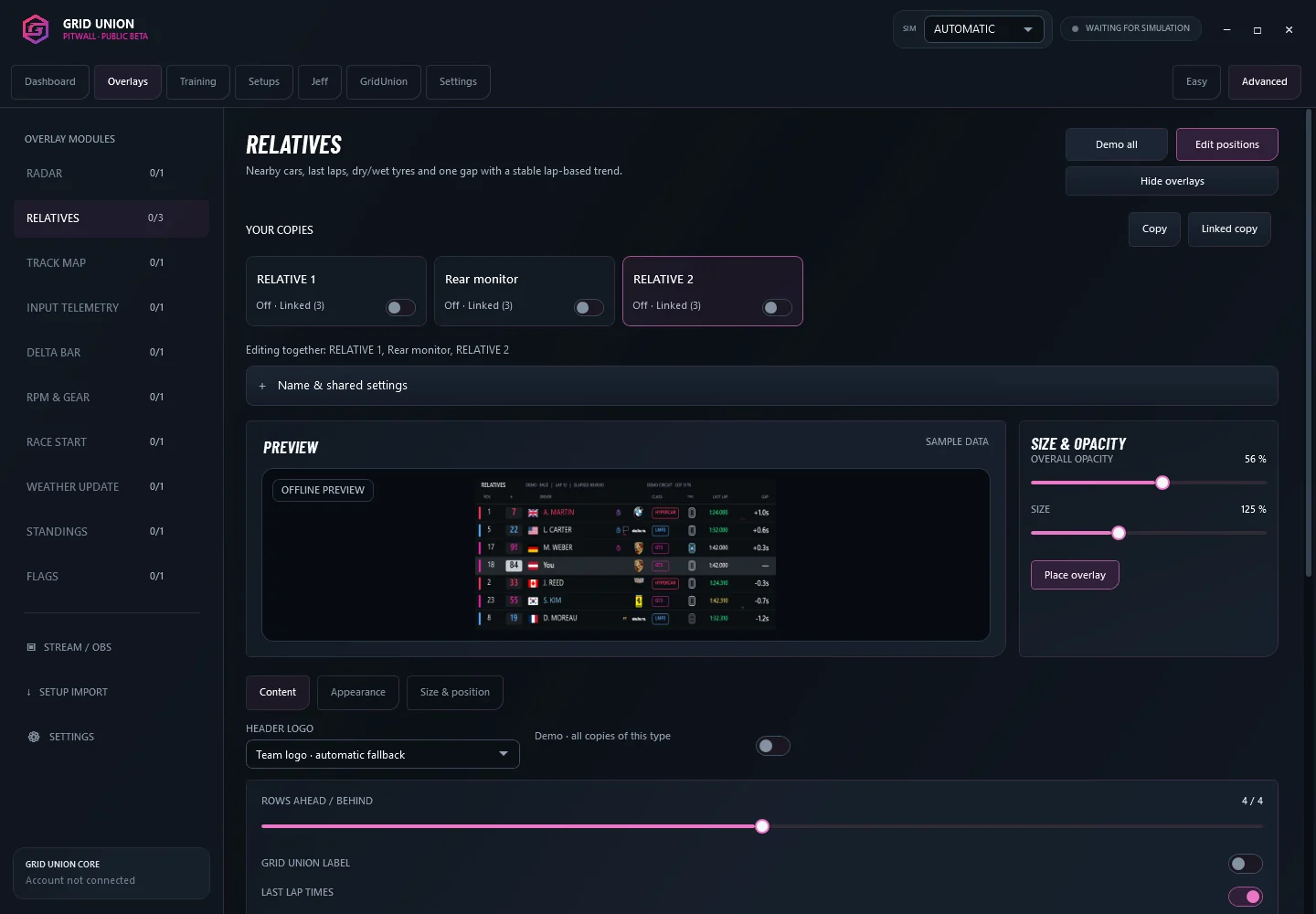
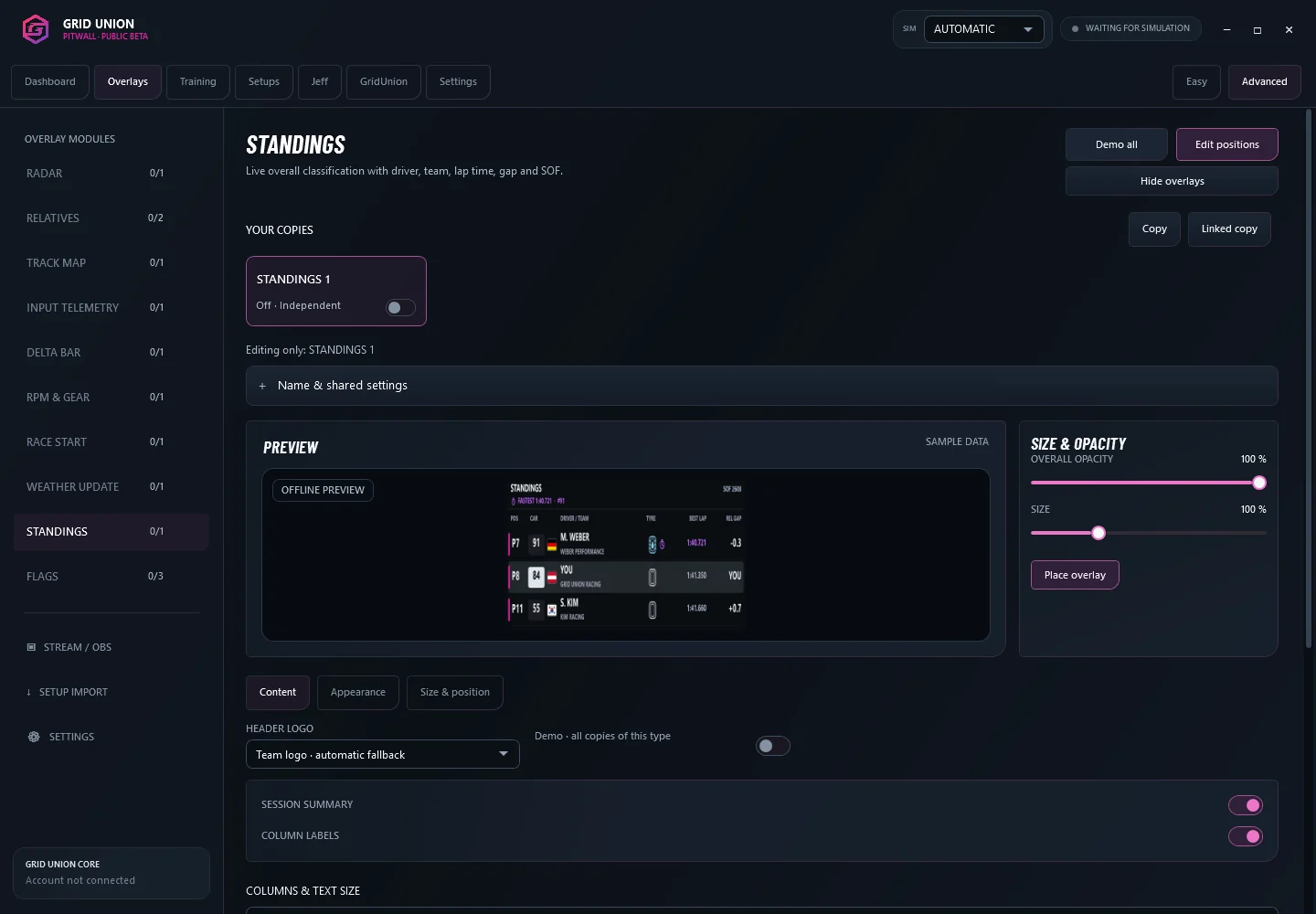
Choose a module, select a copy, then adjust Content, Appearance or Size & position directly below the preview. Link copies to edit them together; keep them independent for different views.
Choose what you see.
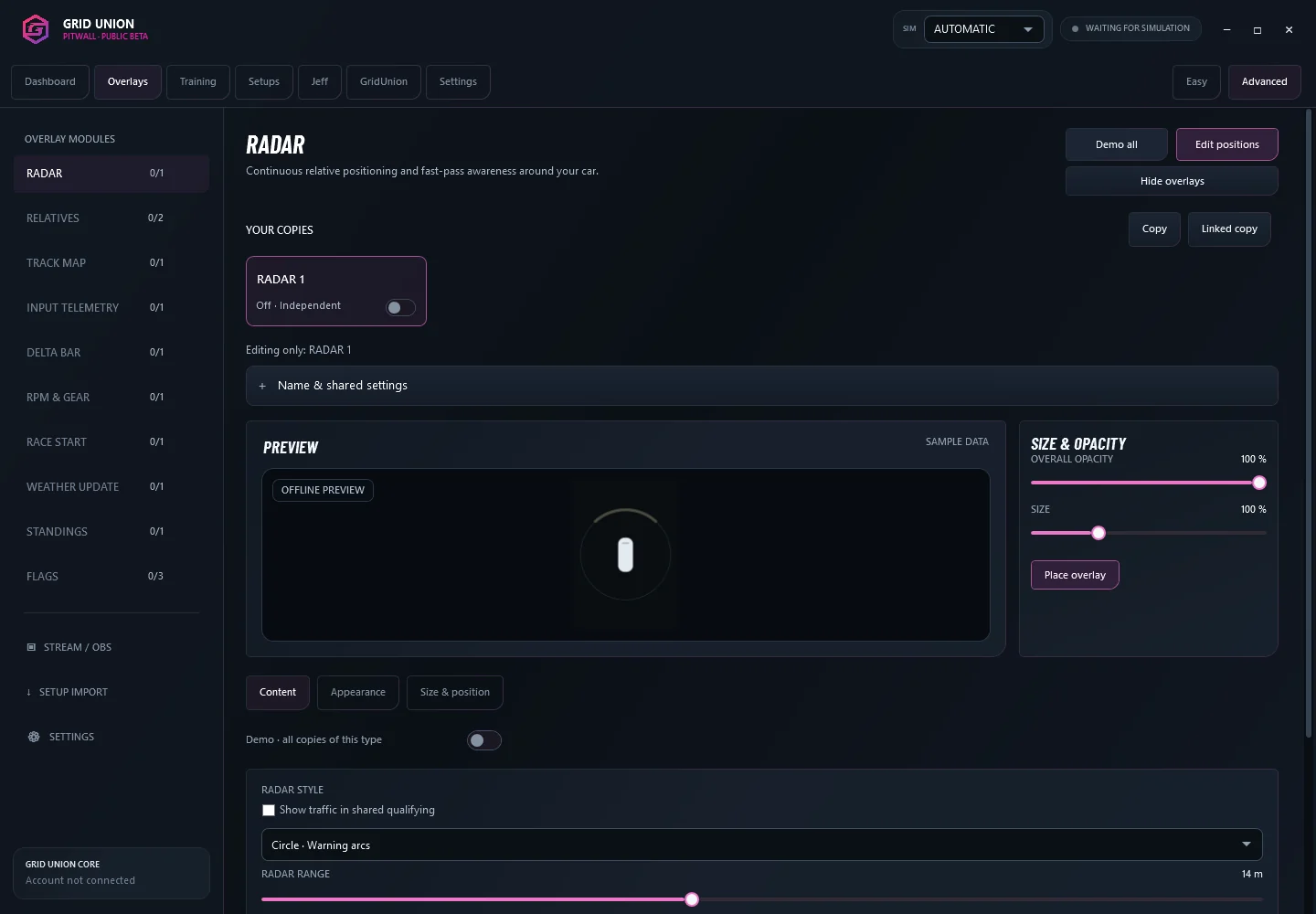
App previews · demonstration data · adjustable text and scale.
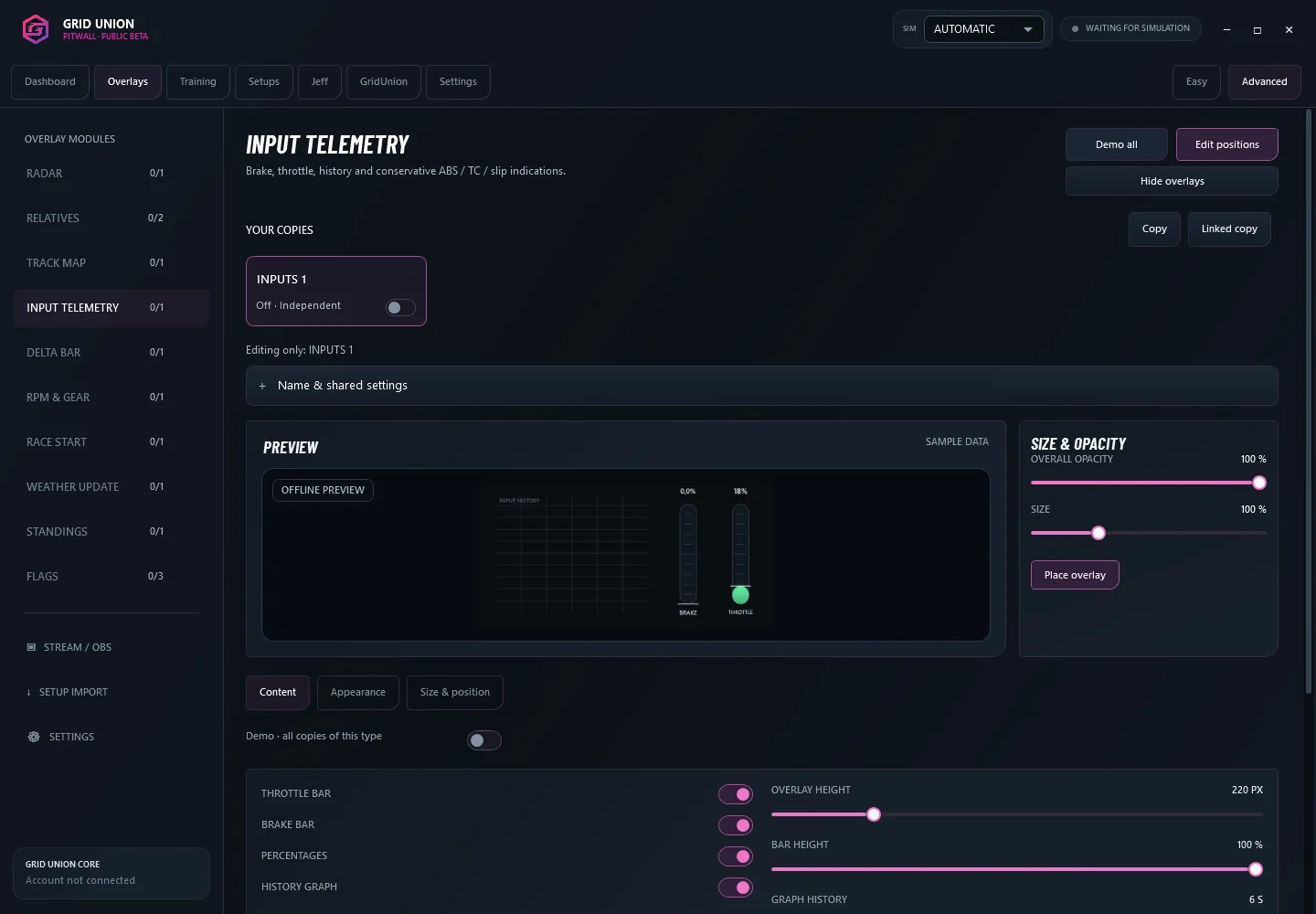
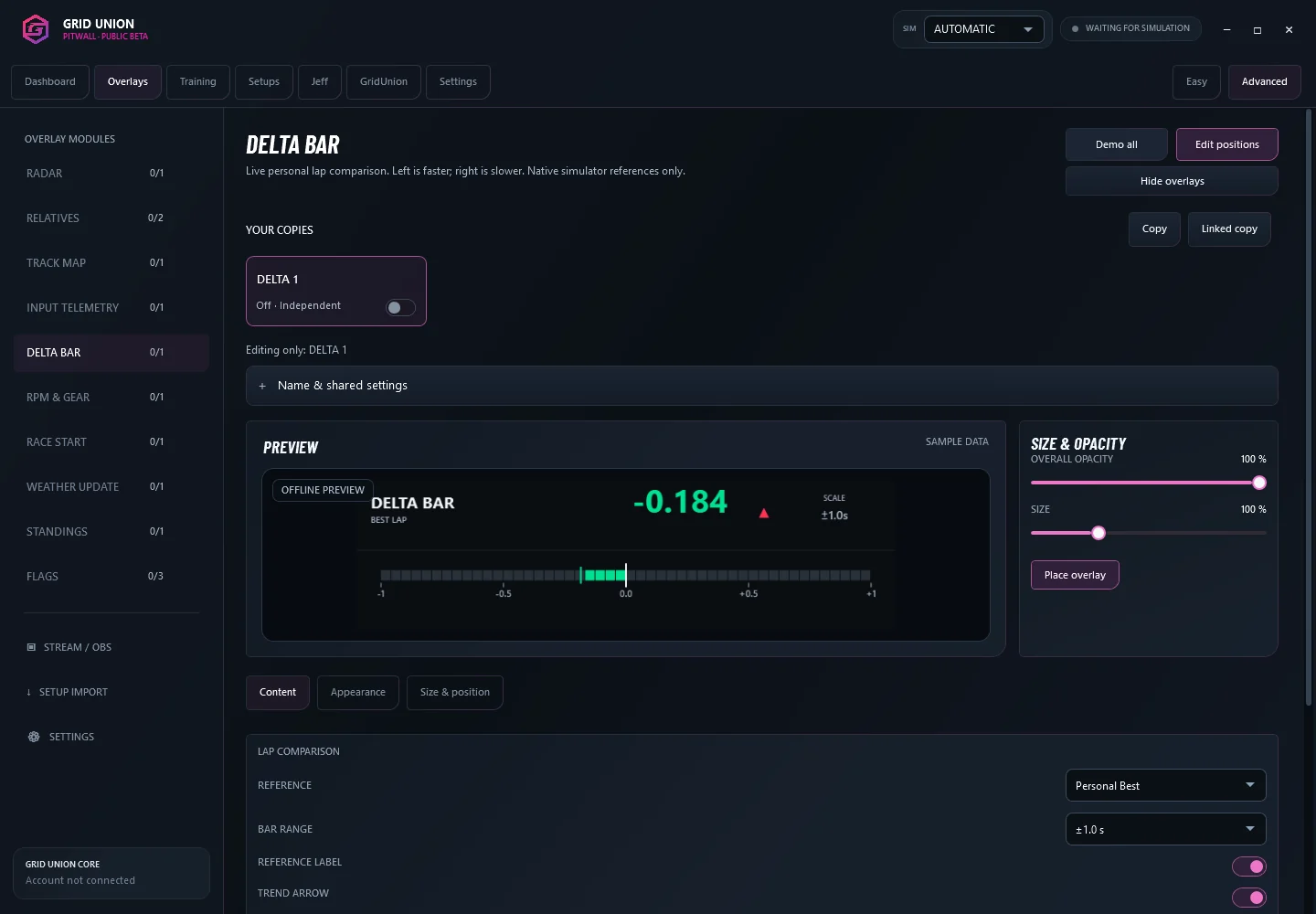
Install. Connect. Choose your view.
- Download and installSign in above and download the Windows x64 installer. Check its SHA-256 if you need to verify the file.
- Connect your GridUnion accountOpen Settings → Account. Use Customize for dashboard modules and Overlays for your on-track view.
- Join a supported simulator sessionKeep the app running. Use Settings → Updates → Download & Install for new beta versions.
Updating an older installation
GridUnion Pitwall replaces the former Overlays app. Your account, recordings and overlay layouts stay in place. Use Settings → Updates in the app. If you are upgrading from Beta 83, download the current installer here instead; your saved settings are preserved. Updates are verified before installation.
Built for iRacing and LMU.
Windows x64 · connect your account for team data and uploads.
Compare simulator support and limitations
| Feature | iRacing | Le Mans Ultimate |
|---|---|---|
| Timing, Relatives & Standings | Supported | Supported |
| Delta Bar | Selectable reference | Native Best Lap · beta |
| GridUnion radar | Ring or car style | Use the simulator's own radar |
| Guided event Long Runs | Local practice · beta | Local practice · beta119 or later |
| Team Race Day & strategy sandbox | Entry-scoped workspace | Entry-scoped workspace |
| Remote pit changes | Supported with assigned permissions | Advisory only |
| Separate stream / OBS layout | Same-PC mirroring | Same-PC mirroring |
Long Runs training is private to your team and event. Leaderboards and lap analysis are separate features. No official simulator-account verification is claimed by signing in with Discord.
The current Windows installer is not publisher-signed. Compare its SHA-256 above before installing; do not disable Windows security protections. There are no published CPU/GPU benchmark claims yet. Local overlays work offline after installation; shared team data, updates and downloads require a connection. No mobile push alarm is promised: use the existing Discord reminders and verify your notification settings.
Turn practice laps into a race plan.
Train with Jeff. Collect pace, fuel, tyre and pit-stop data for your team’s event.
Stint range
Estimated laps and driving time from measured consumption and pace.
Fuel & energy
Litres per lap, plus virtual-energy consumption for supported LMU cars.
Pit-stop evidence
Tyre-change and retained-tyre tests, with measured pit and outlap timing.
Training programme & setup
A guided programme, one task at a time
- Establish race pace5 usable laps; 2 at Le Mans / Sarthe, 1 on a Nordschleife layout.
- Tyres + refillFollow the coach's resource target and change all four tyres.
- Measure the outlapCross the timing line, then drive one complete on-track lap.
- Stop without serviceReturn to your box without tyres or refuelling, then measure the retained-tyre outlap.
- Build a long runAim for a sustained stint. Useful shorter samples remain available with less evidence.
Activate once. No manual save. In Pitwall → Training, choose your team event, check its car and resource settings, confirm matching conditions and activate. Keep Pitwall running and connected during guided training. The coach shows the current task and progress, including PIT THIS LAP and the required service. The sequence above applies to the current app; update older versions before starting a new programme.
Useful for the whole team. Open Training & data in your team's event workspace to compare drivers' usable laps, pace, fuel use and predicted stints. The Stint Planner uses matching training data in automatic mode. Managers can adjust the calculated timing when plans change. Supported tyre observations can also inform wear estimates. Verified contributions can earn profile points and recognition in the team's internal feed.
Before you start: conditions, data quality & beta limits
Currently for local iRacing or LMU practice, not races or replays. Choose or configure the same car, exact track layout, resource restrictions, tyres, weather and rules yourself. GridUnion does not create the session, certify matching conditions or control your pit service. Progress measures evidence coverage, not percentage accuracy; short runs are provisional and unavailable telemetry stays unavailable. LMU tyre changes need observed service and four-corner wear evidence; ambiguous changes are not marked complete. LMU wear is a whole-corner value, not three measured tread zones. iRacing tyre observations are not continuous live wear readings. Always pit before running out of fuel or energy.
For supported LMU energy cars, virtual energy is the primary range input; fuel litres are measured separately. Litres per 100% energy is a consumption estimate, not a fixed tank capacity or BoP conversion. Incompatible conditions must not be pooled.
Dry, damp and wet stay separate. Surface changes create separate data blocks automatically. Estimates show their conditions; choose the intended planning conditions before using them in the Stint Planner. Native wetness categories are not measured percentages.
Long Runs: setup & full guide →Three ways to prepare. Choose the full Long Run programme, a compact Short Run, or low-fuel Qualifying Practice. Teams can opt into a private task board with their own requirements and per-event overrides. Qualifying pace never feeds race-strategy estimates. Configure this under Team → Settings → Training & Tasks.
One drive. Two layouts.
Arrange your stream overlays separately from your driving layout.
Set up your OBS layout
- Open the overlays you want to mirror, then select Stream / OBS in the app.
- Enable local output and choose Add open overlays.
- Open Arrange stream layout and place your stream copies.
- Choose Copy OBS URL. Add a Browser source in OBS, paste the URL and match its width and height to the stream canvas.
Enable Shutdown source when not visible in OBS to save resources. Use Game Capture for your simulator where possible. For Display Capture, the app offers desktop-overlay exclusion; check your OBS preview for duplicate overlays before going live.
The original overlays must stay open. Their appearance and data are shared; closing a source hides its stream copy. No second simulator connection or spotter is started. Local image mirroring adds some rendering and encoding work only while requested, with selectable 5, 10 or 15 fps. Same-PC OBS only; keep the local URL private. Pitwall is not a stream source in this version.
What to know in this beta
- Individual control: select a module to see its copies. Edit one copy or link appearance and content settings. Position and visibility stay independent.
- Your team identity: Relatives and Standings can show your team logo, the GridUnion logo or no logo. Pitwall shows your team's matching vehicle livery when available, using the same selection as the race cards.
- Jeff: the optional HUD starts off. Opponent calls use vehicle manufacturers when known, with neutral calls when they are not. Other-driver name generation is paused.
- Radar: available for iRacing. Use Le Mans Ultimate’s native radar in LMU. Ring positions are estimates, not exact lateral telemetry.
- Traffic Intelligence: temporarily hidden while it is being improved.
- Data availability: fuel, tyres and other telemetry depend on simulator permissions, your car and whether you are driving or spectating. Missing values cannot always be supplied.
Your team data remains protected: signing in and normal team permissions are still required for connected team services.